Showing posts with label 4G. Show all posts
Showing posts with label 4G. Show all posts
Sunday, November 16, 2014
Kogan releases the new Agora 4G smartphone in UK

Kogan Technologies, a Australian reseller of consumer electronics associated with BenQ has announced a new smartphone named Agora 4G in United Kingdom markets. Theres no information about the international availability of the handset.
Agora 4G is expected to come out of the box with a Quad-Core Qualcomm Snapdragon 400 Cortex A-7 chipset clocked at 1.2GHz processor and Adreno 320 Graphical Processing Unit, 5-inches IPS LCD screen with the resolution of 1280 x 720 display, eight gigs of internal memory (expandable up to 64GB via microSD card slot), one gigabyte of Random Access Memory, 8 megapixels primary camera and 2 megapixels front facing camera, 2,520mAh powered battery and runs Android version 4.4 KitKat on the board.
For connectivity the new phone supports, Bluetooth 4.0, WiFi 802.11 b/g/n, 4G networks, microUSB port 2.0 and GPS. The handset weighs 135 grams. The phone will cost you £149, that is around United States Dollars 241.
Source: Korgan

Thursday, November 13, 2014
T Mobile to scoop Android 4 0 update to HTC Sensation 4G

(Credit: Sarah Tew/CNET)
After a number of delays and just a bit of finger-pointing, T-Mobile finally is set to deliver Android4.0 to the HTC Sensation 4G.
As one of the carriers premier smartphones of 2011, the HTC handset should only get better when it picks up Ice Cream Sandwich (4.0.3) on May 16. The details of the update are listed on T-Mobiles support page along with guidelines for performing the update.
As is the case with other Android 4.0 updates, the Sensation 4G will benefit from options such as resizeable widgets, face unlock, and home-screen folders. Given that were talking about an HTC smartphone, the device will also see an update to the custom Sense UI, bring it to v3.6.
T-Mobile also plans to deploy the Android 4.0 update to its HTC Amaze 4G in the coming weeks. Although the carrier has yet to outline a specific date, Id assume they want to make sure the Sensation 4G works well before proceeding with the next model. Id look for some more noise on the matter in early June.
Xiaomi officially announced Redmi Note 4G in China

The Chinese based smartphone manufacturer, Xiaomi has announced a new version of the companys existing Redmi Note phablet, that got officially sanctioned back in March. The new handset from Xiaomi will be named as Redmi Note 4G and as the named suggests, the new device from the phone maker will come with 4G LTE capabilities right out of the box, as the previous model only had support to countrys TD-SCDMA and HSPA networks.
This time instead of the MediaTek Octa-Core models, the newly announced Xiaomi Redmi Note 4G will tot a Quad-Core Qualcomm MSM8928 Snapdragon 400 processor and Cortex-A7 architecture, clocked at 1.6GHz, an Adreno 305 Graphics Processing Unit, 5.5-inches multi-touch capacitive touchscreen with of In-Plane Switching (IPS) panel, which is an active matrix TFT LCD screen technology along with GFF technology, at a display resolution of 1280 x 720 pixels, also offering 178 degrees viewing angles, eight gigabytes of flash storage on board (expandable via microSD card slot up to 64GB), two gigabytes of Random Access Memory, 13 megapixels primary shooter with back-illuminated 28 mm lens, featuring wide angle and large aperture of f/2.2 and LED flash light, capable of capturing Full High Definition 1080p videos and a five megapixels front facing secondary snapper.
For connectivity, the Xiaomi made Redmi Note 4G has got support to Bluetooth 4.0 Low Energy (LE), dual-band WiFi 802.11 a/b/g/N/ac, WiFi Direct, GPS + GLONASS, USB OTG and also compensating 4G TDD-LTE, 3G TD-SCDMA and 2G GSM countryside networks, a 3,200mAh powered lithium-ion polymer battery and running Android 4.4 KitKat with MIUI version 5.0. The smartphone is measured same at 154 x 78.7 x 9.5 millimeters in dimensions, where the smartphone will arrive in both Black and White color options, the manufacturer also offering the protective sleeves in many more shades. Unfortunately, the phone seems to be only available in China, at least for now for 999 Chinese Yuan, thats only about 162 United States Dollars.
Source: xiaomi.com
Thursday, October 9, 2014
How to Uninstall and Reinstall Apps on Motorola Photon Q 4G LTE
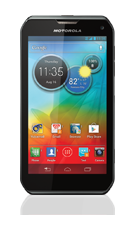
Follow these steps on how to uninstall and reinstall your apps.
To uninstall an app:
- From your Home Lcd, tap Menu.
- Then select Manage Apps.
- Tap on the app you want to Disable or Uninstall.
Disabling the app will remove it from your menu. If you want to Enable it again, just reopen the window and tap Enable.
In case the app locks up your phone as you turn it on, just restart your phone in Safe Mode. Turn off your phone and turn it back after a minute. If you see a Motorola logo during the power up, press and hold both volume keys until you see the home Lcd, with Safe Mode in the lower left. Then you may try removing the app.
To reinstall an app:
If the app is from Google play store, simply go to Apps > Play Store > My apps. From there you can see your apps ready to download again.
Sunday, October 5, 2014
HTC EVO V 4G Virgin Mobile USA

It sports a 4.3-inch qHD screen delivering vibrant 3D content, and dual 5MP cameras that help you capture your own. Add the HTC Sense, 4G speed and new chic design, and you just might not believe your eyes.
Use the 5MP camera in the back to capture those precious moments or fire up some video chat with the front-facing camera to create new ones. Now thats picture perfect.
For great entertainment, dont look far…just look up. The "cloud-based" HTC Watch lets you instantly stream your favorite movies, videos, and more without a WiFi connection.
Fast to the core times two. Thanks to a 1.2GHz dual core processor, youve got a phone that talks the talk and walks the walk…quickly.
With the intuitive camera button, making 3D movies and taking 3D photos is a snap. And since you won’t need 3D glasses to see them, your eyes will enjoy all 4.3 inches of the qHD screen.
Stream from screen to screen. With built-in DLNA connectivity, you can stream videos, photos, and music wirelessly from your phone to your home entertainment system.
(Source: HTC)
| Tech Specs HTC EVO V 4G – Virgin Mobile USA | |
| General and Software | |
| Other names or variations | HTC EVO V 4G for Virgin Mobile HTC EVO 3D (CDMA) for Sprint (discontinued) HTC EVO 3D (GSM) for global market |
| Form Factor | Candybar |
| Operating System | Android 2.3.3 Gingerbread – Interface HTC Sense 3.6 |
| Operating System (download) | Android 4.0.3 Ice Cream Sandwich – Interfaz HTC Sense |
| Physical Keyboard | No – Virtual QWERTY keyboard |
| Announced | 22 March 2011 (for Sprint) 08 May 2012 (for Virgin Mobile USA) |
| Status Available | 24 June 2011 (for Sprint), discontinued 31 May 2012 (for Virgin Mobile USA) |
| Browser & Internet | HTML |
| Adobe Flash Support | Yes |
| Java | MIDP emulator |
| Display | |
| Size, diagonal | 4.3 inches - 109.22 mm |
| Display Resolution | qHD 540 x 960 pixels – Resolution 3D display |
| Generalized Pixel Density | 256 ppi |
| S-LCD – touchscreen – capacitive – Corning Gorilla – 16M colors Glass | |
| Connectivity | |
| WAN / Network 2G | CDMA 800 / 850 / 1900 MHz |
| WAN / Network 3G | CDMA2000 1x/ EVDO rev. 0/ EVDO rev. A |
| 4G | 4G WIMAX 2500 MHz - All on Sprint 4G Network |
| Wireless LAN | IEEE 802.11 b/g/n – Mobile hotspot – DLNA |
| Bluetooth | Bluetooth 3.0 + A2DP + EDR |
| USB | micro-USB 2.0 (5-pin) port – Mass storage – Charging connector |
| Audio/Video Output | HDMI capable: Multi-Media Hyperlink |
| Audio jack 3,5 mm | 3.5mm stereo audio jack |
| GPS / Location Based Services | GPS / A-GPS |
| Camera | |
| Camera Resolution (max) | 5 megapixels (dual for 3D) |
| Camera secundary | 1.3 megapixels – Front camera |
| Camera Focus | Autofocus (for 2D) |
| Camera Flash | Dual-LED flash |
| Additional Camera Features | Geotagging |
| Media | |
| Audio Player | MP3, AAC, AAC+, eAAC+, WMA, WAV |
| Video Player | MPEG4, H.263, H.264, WMV |
| Video Recording | 1920x1080 (1080p HD) // 1280x720 (720p HD) 3D |
| Speakerphone | Yes |
| Loudspeaker | Yes |
| Radio FM | Stereo FM radio with RDS |
| Voice Recording | Voice dialing – Voice commands – Voice recording |
| 3D capture and playback for photos and videos; display downloaded content formatted in 3D; stream 3D content wirelessly to 3D TV | |
| Processor and memory | |
| Processor / SoC | Chipset Qualcomm Snapdragon MSM8660 – S3 – 45 nm - ARMv7 – CPU 1.2/1.5 GHz Dual core Scorpion –GPU Adreno 220 – Single-channel 333 MHz ISM/266 MHz LPDDR2 – Q3 2010 SQN1210 (WiMAX) |
| Processor Clock Speed | 1.2 MHz |
| RAM | 1GB |
| ROM | 4GB eMMC |
| Memory Card Type | microSD |
| Memory Card Size Supported | Up to 32GB – 8GB microSD included |
| Sensors | |
| Accelerometer | Yes |
| Digital Compass | Yes |
| Proximity Sensor | Yes |
| Ambient Light Sensor | Yes |
| Notifications | Vibration, MP3, WAV, Polyphonic |
| Power | |
| Battery Type | Standard Li-Ion 1730 mAh |
| Talk time | Up to 6 hours |
| Stand-by time | Up to 300 hours (12.5 days) |
| Divers | |
| Messaging | SMS, MMS, IM, (IMAP, POP3, SMTP) Push Email |
| Games | Yes |
| Color | Black |
| Phone Book | Yes |
| Organizer | Yes |
| Agenda | Yes |
| Calendar | Yes |
| Task | Yes |
| Notes | Yes |
| Predictive text | Yes |
| Watch | Yes |
| Alarm | Yes |
| Diary | Yes |
| Calculator | Yes |
| Documend Viewer | Yes |
| Flight mode | Yes |
| Weight | 170 grams ( 6.0 oz) |
| Dimensions | 127 x 66 x 12 mm ( 5 x 2.6 x 0.47 in) |
| Languages Supported: English, Spanish | |
| Computer Synchronization, OTA Synchronization | |
| Full Google Mobile Services | |
Gallery:


Plans offered by Virgin Mobile USA HTC 4G EVO V (no contract)
Resources:
HTC USA - HTC EVO V 4G
Virgin Mobile - HTC EVO V 4G
User Manual - English - HTC EVO V 4G
Manual de Usuario - Español - HTC EVO V 4G
Saturday, October 4, 2014
How to Extend Battery Life of Motorola Photon Q 4G LTE
• To see whats using your battery more, go to Settings > Battery. If you want to set an automatic rules of saving more battery, tap on Apps, and select Smart Actions.
• Lessen the Lcd brightness and the Lcd lock timeout..
• Turn down your device volume with the volume keys.
• Close any apps or features when you are done using it so they will not continuously running in the background.
• Turn off the network connection if you are out of range so that your device will stop searching for a network signal.
• You should use the latest version of the software update. Software updates improves some features and fixes some bugs on the previous software version.
• Turn off the camera flash.
• Use the Airplane Mode if you are not using any connections.
Tuesday, September 30, 2014
Motorola Photon Q 4G LTE Tips and Tricks
Here are some How Tos for your Motorola Photon Q 4G LTE. These How Tos may still not yet complete and I am still finding some time to work on the others:
How to Factory Reset Motorola Photon Q 4G LTE
Resetting your Motorola Photon Q 4G LTE will restore the default settings of your device. It will also delete all your files on your phone, so it is recommended to have a backup of your important files on your computer. There are two ways on how to reset your Motorola Photon Q 4G LTE. It can be done through the settings or through the hardware buttons.
Resetting Motorola Photon Q 4G LTE on Settings:
Resetting Motorola Photon Q 4G LTE on Settings:
- On your Home Lcd, press Menu.
- Go to Settings, and select Privacy.
- Tap on Factory data reset.
- Then tap Reset phone.
- And Erase everything to confirm the reset.
How to Hard Reset Motorola Photon Q 4G LTE:
These steps is also helpful when your Motorola Photon Q 4G LTE is unresponsive or frozen and theres no way to access the settings. If it is frozen, remove the battery and reinsert it after a few minutes.
- Power up the device pressing both Volume UP and Down keys at the same time. Use the Volume down key to highlight recovery mode and volume up to select it.
- When in recovery mode, you will see an android with a red triangle. Press Volume up and Volume down at the same time. This will bring up a blue menu at the top of the Lcd.
- Press Volume down to select "wipe data/factory reset" and press the Power key to select it.
- Now press Volume down to highlight Yes and press power to select it.
- Finally, when the device finishes it will have "reboot system now" selected. Just press power to select that option.
How to Extend Battery Life of Motorola Photon Q 4G LTE
Battery Life depends on how you use your device. For Motorola Photon Q 4G LTE device, if you want to save your battery to last longer hours, you may need to adjust your settings. Follow these suggestions:
• To see whats using your battery more, go to Settings > Battery. If you want to set an automatic rules of saving more battery, tap on Apps, and select Smart Actions.
• Turn down your device volume with the volume keys.
• Close any apps or features when you are done using it so they will not continuously running in the background.
• Turn off the network connection if you are out of range so that your device will stop searching for a network signal.
• You should use the latest version of the software update. Software updates improves some features and fixes some bugs on the previous software version.
• Turn off the camera flash.
• Use the Airplane Mode if you are not using any connections.
• To see whats using your battery more, go to Settings > Battery. If you want to set an automatic rules of saving more battery, tap on Apps, and select Smart Actions.
• Turn down your device volume with the volume keys.
• Close any apps or features when you are done using it so they will not continuously running in the background.
• Turn off the network connection if you are out of range so that your device will stop searching for a network signal.
• You should use the latest version of the software update. Software updates improves some features and fixes some bugs on the previous software version.
• Turn off the camera flash.
• Use the Airplane Mode if you are not using any connections.
There will come a time that Motorola or your Internet Service Provider will give a software update for your Motorola Droid Photon Q 4G LTE device. The update is needed to fix some bugs and for you to experience the newly added features. It may come by batch, but if you have not receive the update for a while, then you may need to manually check for the updates.
1. On your devices Lcd, tap on Apps

2. Then go to Settings menu
 .
.3. Then tap System updates.
Make sure that your phone is connected to the Internet to install the update successfully.
How to Uninstall and Reinstall Apps on Motorola Photon Q 4G LTE
There will come a time that you no longer want to play the app that you have downloaded and want to remove it from your phone (Motorola Photon Q 4G LTE). If this time will come, you just need to uninstall or disable the app so it will be removed on your phone.
Follow these steps on how to uninstall and reinstall your apps.
To uninstall an app:
- From your Home Lcd, tap Menu.
- Then select Manage Apps.
- Tap on the app you want to Disable or Uninstall.
Disabling the app will remove it from your menu. If you want to Enable it again, just reopen the window and tap Enable.
In case the app locks up your phone as you turn it on, just restart your phone in Safe Mode. Turn off your phone and turn it back after a minute. If you see a Motorola logo during the power up, press and hold both volume keys until you see the home Lcd, with Safe Mode in the lower left. Then you may try removing the app.
To reinstall an app:
If the app is from Google play store, simply go to Apps > Play Store > My apps. From there you can see your apps ready to download again.
How to Add, Resize, and Remove Widgets on Motorola Photon Q 4G LTE
Adding Widgets on your HomeLcd will help you improve your productivity in using your Motorola Photon Q 4G LTE. If you dont know what widgets means, Widgets are small applications that you can directly use on your HomeLcd. These will serve as your shortcut icon so will no longer need to access the Menu.
To add a Widgets:
There are also app that include special widgets. If you want to download apps, just tap on Apps, then select Play Store.
To move or delete widgets:
How to Make Your Motorola Photon Q 4G LTE a Portable Wi-Fi Hotspot
Smartphones these days can now share its mobile data connection and act as a portable Wi-Fi hotspot. And like those high-end gadgets, Motorola Photon Q 4G LTE is sure to let you experience the benefits of making it as a portable Wi-Fi hotspot. Heres how you can make your Motorola phone the next Wi-Fi hotspot.
To add a Widgets:
- Go to Apps.
- Tap and hold on the widget.
- To change your wallpaper, tap and hold an empty spot on the home Lcd.
- You can also add a folder to organize your shortcuts.
There are also app that include special widgets. If you want to download apps, just tap on Apps, then select Play Store.
To move or delete widgets:
- Tap and hold on a widget you want to delete/move until it vibrates.
- Then drag it to another spot/page, or simply Remove at the top of the Lcd.
You can still request for a refund on your purchased apps if it is still with 24-hours of the purchase. Your credit card will not be charged and the application is uninstalled from your phone. You can still repurchase the apps, but there will be no refund for the second time.
1. Touch Apps > Settings > Apps > Downloaded.
2. Touch the application to uninstall.
3. Touch Uninstall & refund. Your application is uninstalled and the charge is cancelled.
4. Touch the reason for removing the app, and then touch OK.
1. Touch Apps > Settings > Tethering & Mobile Hotspot > Mobile Hotspot settings > Configure Mobile Hotspot if you have already turned it on.
2. Touch a setting to modify some settings.
- Your Network SSID, or the name that you want on your wifi hotspot.
- The Security: Choose the type of security you want, and then touch Save: WPA2 PSK.
- Your Password.
- Broadcast Channel: Select a channel that minimizes potential interference. You may need to try different channels after your hotspot is active for a time.
3. Touch Save when the settings are complete.
To activate your Wi-Fi Hotspot:
- Touch Apps > Settings > Tethering & Mobile Hotspot > Mobile Hotspot.
When your Wi-Fi hotspot is active, other Wi-Fi enabled devices can connect by entering your hotspot’s SSID, selecting a Security type, and entering the correct Wireless password (if applicable).
Thursday, September 25, 2014
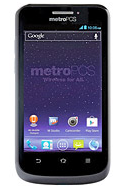
How to Extend Battery Life of ZTE Avid 4G
• Lessen the Lcd brightness and the Lcd lock timeout.
• Turn down your device volume with the volume keys.
• Close any apps or features when you are done using it so they will not continuously running in the background.
• Turn off the network connection if you are out of range so that your device will stop searching for a network signal.
• You should use the latest version of the software update. Software updates improves some features and fixes some bugs on the previous software version.
• Turn off the camera flash.
How to Turn Wi Fi On and Connect to a Wi Fi Network on ZTE Avid 4G
1. Press the Home Key > Menu Key > System settings > Wi-Fi.
2. Then slide the Wi-Fi switch to the ON position to turn on Wi-Fi.
You phone will automatically searches for Wi-Fi networks in range and displays their names and security settings. Your phone also connects to previously linked networks when they are in range.
3. Touch a network name to connect to it. If the network is secured, enter a password or other credentials.
Adding a Wi-Fi Network:
You can add a Wi-Fi network if it does not broadcast its name (SSID), or when it is not in range.
1. Press the Home Key > Menu Key > System settings > Wi-Fi.
2. Then slide the Wi-Fi switch to the ON position.
3. Tap ADD NETWORK and enter the network SSID (name). If necessary, enter security or other network configuration details.
4. Then tap Save.
Friday, September 19, 2014
LG Thrill 4G P925 for AT T – USA

| Tech Specs: LG Thrill 4G P925 | |
| General and Software | |
| Countries | USA (AT&T) |
| Series | Optimus |
| Other names or variations | LG Optimus 3D P920 – LG P920 AT&T – USA: LG Thrill – LG Thrill 4G -- LG P925 |
| Form Factor | Candybar |
| Operating System (earliest) | Android 2.2 Froyo |
| Operating System (latest) | Android 2.3 Gingerbread, upgradable |
| Physical Keyboard | No – Virtual QWERTY keyboard |
| Announced | 21 March 2011 |
| Status Available | 4 September 2011 |
| Browser & Internet | Yes |
| Adobe Flash Support | Adobe Flash 10.1 |
| Java | MIDP emulator |
| Display | |
| Size, diagonal | 4.3 inches – 3D Stereoscopic |
| Display Resolution | WVGA, 480 x 800 pixels |
| Generalized Pixel Density | 217 ppi |
| TFT, 3D LCD, Touchscreen, Capacitive, 16M colors | |
| Connectivity | |
| WAN / Network 2G | GSM: 850 / 900 / 1800 / 1900 MHz |
| WAN / Network 3G | UMTS: 850 / 1900 / 2100 MHz |
| WAN / Data | GPRS Class / EDGE Class – HSDPA 14.4 Mbps, HSUPA 5.76 Mbps |
| 4G | 4G LTE – HSPA+ |
| Wireless LAN | Wi-Fi 802.11 b / g / n – Hotspot DLNA: V1.5 DMS, DMC |
| Bluetooth | Bluetooth v.2.1 with A2DP, EDR |
| Bluetooth Profiles | HSP – HFP – FTP – OPP – GAP – SPP – GAVDP – A2DP – AVRCP – AVDTP – AVCTP – PBA |
| USB | MicroUSB v.2.0 – Mass Storage – Charging connector |
| Audio/Video Output | HDMI, via MHL |
| Audio jack 3,5 mm | Yes |
| Infrared port | No |
| GPS / Location Based Services | A-GPS Support for Enhanced Location Accuracy |
| Camera | |
| Camera Resolution (max) | 2x5 megapixels – 2592 x 1944 pixels – 3D Stereoscopic |
| Camera secundary | Front-Facing VGA Camera for video chatting – 1.3 megaapixels |
| Camera Focus | Auto focus |
| Camera Flash | LED |
| Camera Zoom (max) | Digital Zoom up to 8x |
| Additional Camera Features | Image Editor: rotate, resize, filter, adjust color, add borders, combine, and crop images Image Quality – set camera to capture Normal, Fine, or Super Fine Customizable White Balance, Quality, Color Effect, Brightness, Timer, Shot Mode, and Shutter Sounds |
| Camera Resolutions: 2592 x 1944 (default), 2048 x 1536, 1600 x 1200, 1280 x 960, and 640 x 480 pixels | |
| Media | |
| Audio Player | AAC(+), MP3, WAV, WMA, OGG, Poly |
| Video Player | MPEG4, H263, H.264, DivX, WMV |
| Video Recording | 2D 1080p HD (1920x1080 pixels) – 3D 720p HD (1280x720 pixels) |
| Video Recording Frame Rate | 30 fps |
| Video Playback | 2D 1080p HD (1920x1080 pixels) – 3D 720p HD (1280x720 pixels) |
| Video Playback Frame Rate | 30 fps |
| Speakerphone | Yes |
| Loudspeaker | Stereo speakers |
| Radio FM | Stereo FM radio with RDS |
| Voice Recording | Yes |
| Video Quality – set camcorder to record Normal, Fine, or Super Fine Video Recording Time: Normal or MMS (up to 30 seconds) | |
| Processor and memory | |
| Processor / SoC | Chipset 45nm TI OMAP4430 (CPU: 1-1.2 GHz Dual-Core ARM Cortex-A9 -- ARMv7 // GPU: PowerVR SGX540 @ 304 GHz) Dual-channel LPDDR2 memory controller – Q1 2011 |
| Processor Clock Speed | 1 GHz |
| RAM | 512MB |
| Internal memory | 8GB |
| Memory Card Type | MicroSD |
| Memory Card Size Supported | Up to 32GB |
| Sensors | |
| Accelerometer (autorotate) | Yes |
| Digital Compass – Magnetometer | Yes |
| Proximity Sensor | Yes |
| Ambient Light Sensor | Yes |
| Notifications | Vibration, MP3, polyphonics |
| Power | |
| Battery Type | Li-Ion 1500 mAh |
| Talk time | Uup to 6 hours |
| Stand-by time | Up to 312 hours – 13 days |
| Divers | |
| Messaging | SMS, EMS, MMS, Email (IMAP4 / SMTP / POP3), IM (Google Talk), Microsoft Exchange |
| Games | Yes, downloadable |
| Color | Black, White |
| Phone Book | Yes, unlimited – Photocall |
| Organizer | Yes |
| Agenda | Yes |
| Calendar | Yes |
| Task | Yes |
| Notes | Yes |
| Voice memo | Yes |
| Predictive text | Yes |
| Watch | Yes |
| Alarm | Yes |
| Diary | Yes |
| Calculator | Yes |
| Documend Viewer | Yes |
| Flight mode | Yes |
| Weight | 168 grams (5.93 oz) |
| Dimensions | 128 x 68 x 11.9 mm (5.07 x 2.67 x 0.47 in) |
| Android platform – Social networking integration | |
| Gmail – Google Calendar – Google Contact Sync – Google Latitude – Google Maps Street View – Google Maps – Google Maps Navigation – Google Quick Search Box – Google Talk – Google eBooks – Google Search by Voice – YouTube | |
| Computer Synchronization – OTA Synchronization | |
| Preloaded AT&T Apps: Amazon Kindle, AT&T Address Book, AT&T Code Scanner, AT&T FamilyMap, AT&T Hot Spots, AT&T Navigator, Movies, Get 3D Games, Qik Lite, CIQ, Live TV, myAT&T, and YPmobile | |
| No Glasses Required – experience 3D immersion without glasses! 3D Space – access all 3D features in one place via a carousel YouTube 3D – quickly upload and locate 3D videos on YouTube 3D Games & Apps – play games in 3D 3D Capture and Share – snap pictures and record video in 3D 3D Gallery – view 3D photos and videos 3D Guide – find helpful tips for creating, viewing, and sharing images in 3D | |

Subscribe to:
Posts (Atom)