Showing posts with label update. Show all posts
Showing posts with label update. Show all posts
Thursday, November 20, 2014
Facebook for Windows Phone gets a minor update
Facebookwas updated toversion 8.1.6.0in the case of usingWindows Phone 8.1.Do not expect big changes, were talking about a minor update tofix some bugs and improve performance.In terms of the interface and options no news for now.If you do not even the Windows Phone Store warned that a new version you can update manually searching for the app in the store.
Version 5.0 of the application ofFacebookwas developed from scratch completely, was seeking better performance, add a new interface,improved navigation and compatibility with most resolutions, among other things.We make it easy to see that our friends are doing, share updates, photos and videos.
An important aspect is the notifications, now receive an alert when our friends pressed on "Like" and put comments on our publications.could not miss the power in group discussions.They certainly did a great facelift to the application.
Most of the improvements were made in version 5.2.Thenotificationsare faster and safer, and put ads for the chat, the main icon was redesigned, also the side of the chat, events, groups, pages and albums.Finally improvements messages, performance and included more languages.
Please remember that depending on the version of Windows Phone that you use youll get a different version number of Facebook.Application works quite well and usually receives updates, it shows that Microsoft developed.We will see that improvements introduced soon, although summer a major update is expected.Facebookfor Windows Phone does not have a very high score in the store, currently 3 stars out of 5.s an application that uses many people and usually has all kinds of criticism.
Windows Phone Store|Facebook(free)

Monday, November 17, 2014
Galaxy S3 Jelly Bean update coming soon Galaxy S2 Android 4 1 tests also on the way

The hottest Android handset available in stores right now is the Galaxy S3, but Samsung’s flagship handset is not running Google’s latest mobile operating system, Android 4.1 Jelly Bean. The Galaxy S3 was released in late May, a month ahead of the Google I/O event where Jelly Bean was first unveiled, with the OS running only on the Nexus 7 initially.
Google said that Nexus-branded smartphones (Nexus Galaxy and Nexus S) but also the Motorola Xoom tablet, will be the first ones to get Jelly Bean support, but in the mean time we’ve seen plenty of Android 4.1 ports for a variety of devices. Not to mention that the first CyanogenMod 10 preview builds have started to appear, and the Galaxy S3 is supported.
Today we hear that Samsung is already testing Android 4.1 for the Galaxy S3 and Galaxy S2, but we have no release dates for you at this time.
According to an insider that spoke to Sam Mobile “Samsung is almost ready to update” the Galaxy S3 to Jelly Bean, and by almost ready the publication means August or September. We have already wondered how fast the Jelly Bean update for the Galaxy S3 update would arrive a few weeks ago. At the time we read a report that suggested Samsung engineers took extra measures to make sure the device will offer a great Jelly Bean experience, but Samsung has kept quiet on its Android 4.1 upgrade plans.
Moreover, Samsung is also testing Android 4.1 on the Galaxy S2, which is pretty much what we would expect from the company. However, that doesn’t mean we’ll see a timely Jelly Bean release for the Galaxy S2 varieties out there – and we don’t even dare ask about the Galaxy S Jelly Bean build yet.
However, the same blog says “Samsung will update the Galaxy S II if the porting to Android 4.1 on the Galaxy S II goes well.” The Galaxy S2 is already successfully running Ice Cream Sandwich so it should have no problem getting Jelly Bean as well.
We’ll be back with rollout dates for various markets for both the Galaxy S3 and Galaxy S2 in the following weeks and months, so keep us bookmarked!
Thursday, November 13, 2014
T Mobile to scoop Android 4 0 update to HTC Sensation 4G

(Credit: Sarah Tew/CNET)
After a number of delays and just a bit of finger-pointing, T-Mobile finally is set to deliver Android4.0 to the HTC Sensation 4G.
As one of the carriers premier smartphones of 2011, the HTC handset should only get better when it picks up Ice Cream Sandwich (4.0.3) on May 16. The details of the update are listed on T-Mobiles support page along with guidelines for performing the update.
As is the case with other Android 4.0 updates, the Sensation 4G will benefit from options such as resizeable widgets, face unlock, and home-screen folders. Given that were talking about an HTC smartphone, the device will also see an update to the custom Sense UI, bring it to v3.6.
T-Mobile also plans to deploy the Android 4.0 update to its HTC Amaze 4G in the coming weeks. Although the carrier has yet to outline a specific date, Id assume they want to make sure the Sensation 4G works well before proceeding with the next model. Id look for some more noise on the matter in early June.
Tuesday, November 11, 2014
Nokias software update for its Lumia 800 and Lumia 710 handsets

Lumia owners may be sensation a little deflated after studying their equipment will not get an update to Windows Phone 8 – but Nokia has dedicated to Windows Phone 7. The first function which will elegance the 800 and 710 as part of this update is Wi-Fi hotspot compatibility. Enabling owners to discuss their mobile internet access with up to five other equipment.
The photographic camera app will see a coordinator of new functions, including smart group shot, action shot, self timer and panorama, plus youll also get Nokias Play To – which allows users to stream media wirelessly to DLNA compatible devices.
Slightly less exceptional, but possibly still useful, is the flip to silence function, which will mute the ringer for an inbound call when the mobile phone is turned over. Finally Nokia has also guaranteed a range of unique new programs once the update has been set up on your mobile phone.
Wednesday, October 8, 2014
Android Kitkat 4 4 Update for Micromax Android Mobile
Mostly all Micromax Android Mobiles Users are waiting for Update of Android Kitkat 4.4 OS Update for Micromax Android Mobile, but we are also waiting for Android Kitkat 4.4 OS for Micromax Mobile.

When we are got any detail about Update, I will add information like
Android Kitkat 4.4 Update is Available: Upcoming
How to Update Micromax Mobile to Android Kitkat 4.4, so wait for update: Upcoming
For Latest Android Mobile Details: Subscribe Our News Updates
When we are got any detail about Update, I will add information like
Android Kitkat 4.4 Update is Available: Upcoming
How to Update Micromax Mobile to Android Kitkat 4.4, so wait for update: Upcoming
For Latest Android Mobile Details: Subscribe Our News Updates
Friday, October 3, 2014
How to Update Motorola Atrix HD
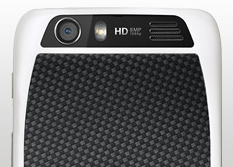
1. On your devices Lcd, tap on Apps
 and go to Settings menu
 .
.2. Then select About phone..
3. Then tap System updates.
Make sure that your phone is connected to the Internet to install the update successfully.
Tuesday, September 30, 2014
Update to Windows 8 1
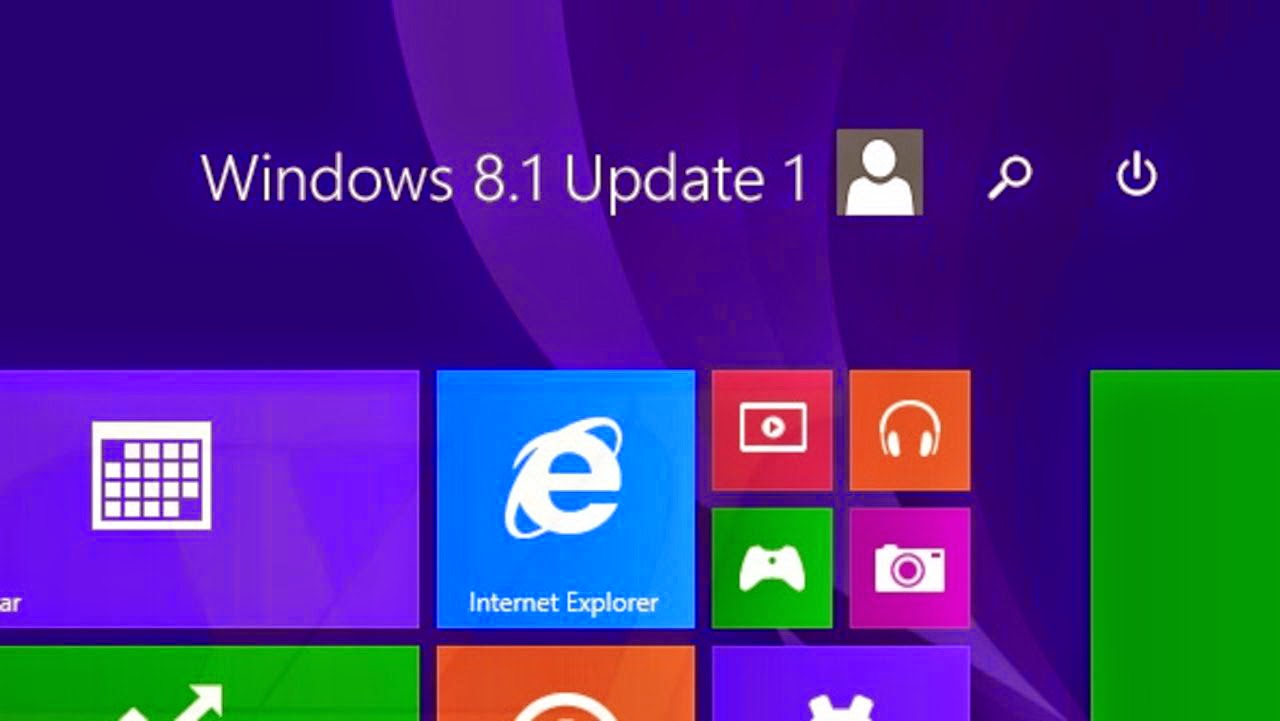
Microsoft made a big enough change at the latest update for Windows 8.1. With the full name Windows 8.1 Update 1, Microsoft apparently heard few complaints of users who still feel awkward using Windows 8, which originally was more emphasis on touch-screen based user.
The presence of this Update 1 is the bridge for users familiar with the methods of the desktop and user-based touch screen. Therefore many new features back showing the ease for the user desktop.
Therefore, for those who have yet to do this update immediately do so and you will feel the difference which makes Windows 8.1 is more convenient to use. The following steps must be done:
Users of Windows 8
For users of Windows 8, you first have to do a Windows update to 8.1. Even before that, you also have to do an update can be obtained from Windows Update.
- Run the Windows Updates by going to the Control Panel in advance. Press the Windows key + R, and type control, click OK. Go to System Security & > Windows Update. Click Check for updates, and wait a few moments. Later will be shown some updates that you can manually select or choose all. It is recommended you select all of the updates to get more optimal. Click Install to begin downloading and installing it.
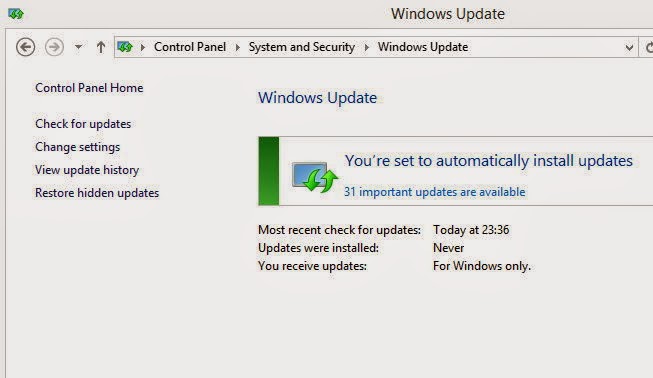
- Once completed, the system will restart. Wait until the process is completed. Then go to the Store, and Windows search Windows Update to 8.1. Click to confirm.

- The previewscreenwill appearand confirmthat you willdownload Windows8.1(Pro)whichhas a capacity of3.63-GB.Click Downloadto begin.Thisupdate processwill immediatelyupdateto Windows8.1Update 1.Dont forget touseyouraccountas an administratorandverify thatyourInternet connection isstableandsmoothly.Laterthere will bea processrestartseveral timesto finish.

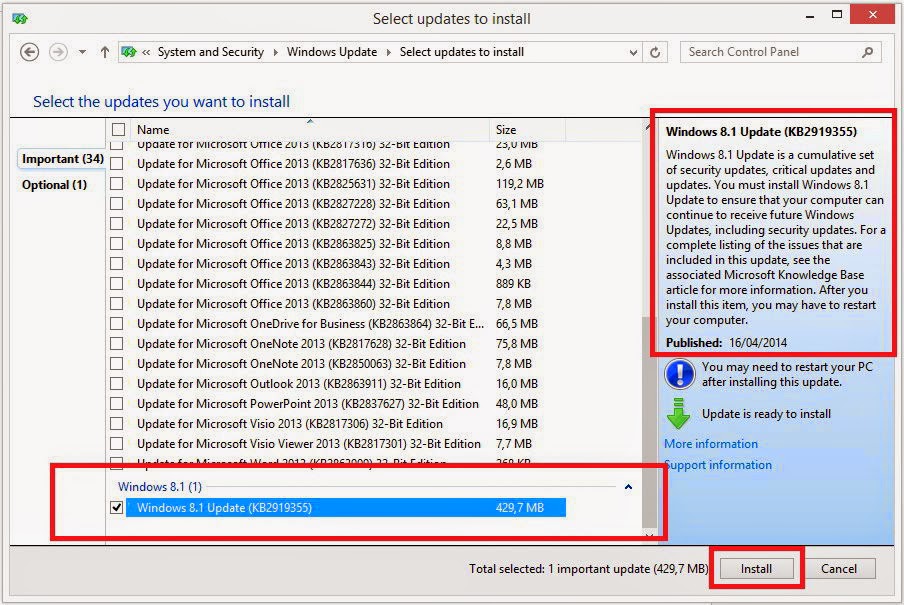
Users of Windows8.1 - Similar tothe first stepinWindows 8, pressthe Windows key+ R, andtypecontrol,click OK.Goto SystemSecurity&>Windows Update.ClickCheck forupdates,ticktheallavailable updates.Click Installto begindownloadingand installing it.
- Afterrestart, goback to WindowsUpdate,click onCheck forupdates.Laterwill be showna Windows file429,7-sizedupdate8.1MB,tickandclick Install.Once completed, the Windows8.1youhave turned intoWindows8.1Update 1.Andyou can seethe changesthere.
Sunday, September 21, 2014
Update Galaxy S2 GT I9100 with Liquid Smooth Jellybean 4 2 2 Firmware

Samsung Galaxy S2 GT I9100 smartphone users can now make the most of their smartphone as in the due course of this article we will be checking out on how you can install the latest version of Liquid Smooth Custom ROM firmware which ropes in the magic of Jellybean 4.2.2 firmware. The best part of this is that it comes with the added additives of Jellybean 4.2.2 experience. So, before we proceed on to check on what are the instructions to apply this update, follow the list of quick pre requisites mentioned below;
Note: Though applying this firmware update will void the Warranty, you can at any point of time revert back to the factory firmware.
Quick Pre Requisites:
- Create a backup of all the data with the help of below mentioned steps and not with the Samsung KIES as your device may not detect with the KIES after applying this update as till now this update might not have arrived for your Country.
SMS – Use “SMS Backup & Restore app”,
Contacts – Sync with the Gmail application,
Call Log - Call Log and Restore
Images, Songs, Videos, Files – Copy to internal / External SD Card,
APN and MMS Settings – Note down from the path “Applications > Settings > Wireless and Network > Mobile Networks > Access Point Names”
- Enable the USB Debugging from the path “Settings > Applications > Development > USB debugging” and also you will have to ensure that the minimum battery life should be 30% so as to ensure that the phone doesn’t get turned Off in the middle of update. Disable / uninstall all the security suites installed in your phone.
Disclaimer: Follow all the instructions mentioned in this article as if there is any damage caused due to not following instructions then we shall not be held liable or responsible. Just in case if you face any issues then we will try our level best to address the same.
- As this is the custom ROM firmware, you need to make sure that you have rooted your device. To check on whether your Galaxy S2 is rooted or not, you will have to download the “Root Checker” app from the PLAY Store.
Assuming that you have followed all the above mentioned instructions, you can proceed on to next step where we have mentioned the detailed guide on how to apply with this firmware update.
Procedure to Update Galaxy S2 GT I9100 with Jellybean 4.2.2 Liquid Smooth Custom ROM firmware:
- Download the Liquid Smooth Custom ROM Firmware Package from here in your computer.
- Once downloaded, connect your device to the computer with the help of original USB cable and then place the downloaded file in your device. Disconnect the device once the files are copied.
- Turn Off your phone so that it can be entered in the download mode. Recovery mode in Galaxy S2 GT I9100 can be entered by pressing Volume Up Key, Centre button, and holding both simultaneously press the Power Button after which you will get to see a green robot indicating that the device has entered in the recovery mode.
- In recovery mode, select “install zip from SD Card” and choose the firmware zip file which you have placed in your device.
- Once selected, you need to wait for the same to get updated in your device. It may take around 4 -5 minutes for applying the update. Once the device is updated, select the option of “Reboot System Now” for rebooting the device in the normal mode.
- To check on whether the device is updated with the firmware or not, you need to check the same from the path “Settings > About Phone > Firmware Version” where you will get to see about the firmware version.
Note: Just in a rare case if the device doesn’t boot up or show the home Lcd then remove the battery and reinsert the same to boot the device again in the normal mode.
Do let us know in the comments section just in case if you face any issues in the process of firmware update as we will try our level best to answer all your queries / issues at the earliest.
Sunday, September 7, 2014
HTC One 4 19 401 11 update in all flavours!

Today the newest 4.19.401.11 OTA for the HTC One has begun rolling out. Due to the official OTA changelog it should fix Wi-Fi problems that some users were having since the Android KitKat update (added support for more routers).
To satisfy all HTC One users, as always Ive prepared both Android Revolution HD based on latest 4.19.401.11 OTA update (link) and also stock system dumps (link). Apart from that under this link you can find original 4.19.401.11 OTA update .zip file for both 4.19.401.8 and 4.19.401.9 software versions.
Once again, here are all the links you need:
Android Revolution HD 53.0 (4.19.409.11) - download
Stock 4.19.401.11 system dumps - download
Original 4.19.401.11 OTA zip package - download
Subscribe to:
Posts (Atom)