Showing posts with label one. Show all posts
Showing posts with label one. Show all posts
Sunday, November 16, 2014
HTC One 2014 with Sense 6 0 goes official from the Taiwanese

It is finally the 25th of March, and we know which multinational smartphone manufacturer is holing an Press event today, and where. As we have HTCs the all new One of 2014 now announced officially at their Keynote, in United Kingdom and United States. The new phone will replace the companys front runner smartphone of the previous year and their predecessor One with their new 2014 edition of all new One or M8. As heard from the previous news, rumors and leaks, the new phone will come out of the box debuting the companys latest version of Sense User Interface 6.0.
The new HTC made One features a Quad-Core Qualcomm Snapdragon 801 processor clocked at 2.3GHz with Krait 400 Central Processing Unit (CPU), Adreno 330 Graphics Processing Unit (GPU), five-inches Full High Definition screen of 1080p resolution display, 16 and 32 gigabytes of internal mass storage (expandable via microSD card slot up to 128 GB), two gigabytes of Random Access Memory (RAM), dual set of primary cameras on the back of four Ultrapixels kind, allowing selective focus and more depth in the taken images, compensating dual-tone LED flash lights that takes great shot in low light conditions, a five megapixels front facing secondary camera with wide angle lens, on the connectivity side, the handset has got 4G LTE network support with Bluetooth 4.0, Near Field Communication (NFC), IR Blaster and HTCs dual-stereo BoomSound speakers, BlinkFeed homescreen a 2,600mAh powered battery and runs Androids version 4.4.2 KitKat with HTCs own new Sense UI 6.0 one top.
The new features on the very new phone includes the new Motion Launch, which allows users of the phone to wake up the display by swiping up from the bottom of the screen and also to launch the camera application by just picking up the phone in landscape mode by tapping the volume button.
The One 2014 will be available from today around the North American, European, Asian, African and Middle Eastern markets coming in Amber Gold, Glacial Silver and Gunmetal Gray color options, measuring in about 146.36 x 70.6 x 9.35 millimeters in dimensions and weighs 160 grams on mass. The Taiwanese has also introduced a Google Play Edition of their new flagship One, where you can now pre-order the unlocked version for about 699 United States Dollars.

Saturday, November 15, 2014
HTC One Mini 2 leaks in a real life image
.png)
HTCs handsets are all over today, and we have to report you with yet another upcoming Taiwanese smartphone. Yes, we are talking about the miniature version of the companys 2014 flotilla leader, One M8. We have already seen the device leak in Press renders, showing us the phone in its sibling like Gunmetal Gray, Glacial Silver and Amber Gold colors, this Sunday and also read about how its internal specifications are going to be like, in February. But, today we have the phone itself caught live in hands of the "careless tester", using the smartphone in a public transportation, as reported by the sources.
What we do notice here at the first go is the unfamiliar yellow accents going around the full aluminium chassis, which is of course new with the manufacturer, if you know about their past. We are really in doubt this to be a prototype device, than a commercial model, but if things turn around a bit, we will be seeing new shades of the phone other than the colors from the traditional Ones palette. The reads also confirm the chances of on scree navigation buttons for the One Mini 2, as its big brother M8. Other than that, the phone will resemble the HTC One M8 like design overall, just skipping-off that duo-cameras and dual-tone LED flash lights on the back.
The rumored specs of the yet to go official phone includes a Quad-Core Qualcomm Snapdragon 400 processor, running at 1.4GHz, 4.5-inches screen of 720p resolution display, 16 gigabytes of on board expandable storage, one gigabyte of RAM, 13 megapixels primary camera on the back with LED flash light, a five megapixels front facing snapper with Bluetooth 4.0 and WiFi a/b/g/n/ac radios, Androids version 4.4.2 KitKat and HTCs Sense UI 6.0 over the hood. We are hearing the dates of an official announcement later this month.
Source: phoneArena.com
Saturday, November 8, 2014
HTC officially announces One 2014 M8 in Red for O2 and Pink in UK
.jpg)
If you are looking for yet another set of shade for the lately announced HTCs 2014 flagship smartphone, here we have two new colors coming to the United Kingdom. The Taiwanese multinational phone maker, HTC yesterday announced two new tints for their latest bellwether handset for the countryside Brits, out of which one will be in Red and another one in Pink, as leaked and tipped earlier.
Indeed, the new Red version of HTC One M8 (from the above picture) will be an exclusive to the telecommunications, internet and financial services provider, Telefónica O2 in Great Britain, which will be available for pre-order from 5th of next month, and should start filling up the store shelves with the next two days from then, expected by 7th of August.
And for the Pink cast (as seen from the below picture), we will be seeing it unique from the UK based mobile phone retailer, Carphone Warehouse, with pre-orders starting from today and should start shipping the consignment to customers by 7th of the upcoming month. The seller is also offering a free Dot View Case with the orders. So, if you find interest in buying one HTC One 2014 in the Pink tinge, head over here to add one to your cart on-contract for £28 per month, that around $48 monthly.
.jpg)
Friday, November 7, 2014
HTC announced Harman Kardon edition of One 2014 exclusively for Sprint

The Taiwanese multinational corporation and manufacturer of smartphones and tablets, HTC and United States based telecommunications and wireless service provider Sprint Corporation took the stage at the companies event yesterday at New York to announce their special edition Harman Kardon HTC flagship, One 2014 or M8.
Looking at its hardware and the design, HTC has done over a new paint job of Black and Gold flavors, where the new phone totally focuses on Media Junkie out there. The new smartphone is said to have industry-leading sound with the companys own proprietary front facing dual-stereo speakers and custom amps. The speakers are capable of HD Audio music reproduction via a 24bit/192kHz DAC, that streams out roughly six times the information of a compact disc and 60 times the information from a MP3 or online music streaming service, when playing high resolution (FLAC) audios, that can be downloaded from sources like, HDtracks.com.
The new Harman Kardon edition of One (M8) also packs in a custom set of Harman Kardon AE-S headphones worth 149 United States Dollars retail price, out of the box, featuring extended audio bass response. In addition the phone has got 160 gigabytes of internal mass storage capacity that can be expanded up to 128 gigabytes through a microSD card slot, a revolutionary new application named, HARMANs Clari-Fi, which basically restores and "rebuilds" music fidelity that was lost during the audio compression.
Other internal specifications remain the same, attributing five-inches Full High Definition screen of 1080p display, Quad-Core Qualcomm Snapdragon 801 processor, speeding at 2.3GHz, Duo-Camera of the Ultrapixles fashion, with dual-tone LED flash light and 1080p video recording, access to "world phone" global connectivity and Sprint Spark for high speed LTE network connections, along with crystal clear HD voice performance.
To add some bonus to the announcement, Sprint Wireless will also offer its customers Harman Kardon Onyx Studio for just $99.99 when bought with the HTC One 2014 (M8) Harman Kardon edition, which is originally worth $399.99 in retail value.
"For years, mobile music has been watered down and compressed into small, low-resolution digital files. The technological advances in smartphone processors and memories make high-quality audio possible today, so Sprint, HARMAN and HTC have partnered to bring this breakthrough to our customers," said Dan Hesse, CEO of Sprint Corporation.
As of its availability and pricing, the newly announced phone will make its way to all official Sprint retail stores by 9th of next month, May, where via Sprint Easy-Pay plan customers can bag one for $0 down payment on a 24-months contract for just $28.34 per-month.
Source: Sprint
Tuesday, November 4, 2014
Android One platfrom is official from Google

Alongside the new Android L release from the search giant at their Annual I/O Developers Conference from San Francisco, California, United States, the company has also announced a new program called, Android One. The new platform from the Google will make their mobile operating system available for more customers at a low price.
Android One platform will help smartphone manufacturers build low-priced high-quality hardware for the emerging markets like China and India. Where Google will take the initiative of releasing hardware and software reference platform for OEMs by pre-selected components, running stock version of Android operating system and by receiving automatic updates for the system applications. Yesterday, the company had announced three manufacturing partners from India, that includes, Micromax, Karbonn and Spice. The new smartphone and tablets build with Android One will be priced under 100 United States Dollars. Googles Senior Vice President, Sundar Pichai also showed off a new smartphone from Micromax that packs an interesting design and the new talked about Android One, with 4.5-inches screen, dual-SIM and microSD card slots, accompanied by FM radio. Products with attributing Android One will be making their way to India, this fall. According to Pichai, he had been using the smartphone for a while now, and hes seriously impressed with the performance of the handset.
Monday, October 13, 2014
HTC Google Play Edition Mobile Nexus One HTC Sense Latest
After successfully making the Samsung Galaxy S4 be tasteless Samsung Galaxy Nexus via Google Play S4 Edition , Google is now trying to do the same against the eternal rival Galaxy S4 is HTC . Yes , this time I tried to mix with a variety of HTC Google -style seasoning to make it taste like the Nexus . As a result, this time Google issued a new Nexus phone flavor that is named HTC Google Play Edition . Curious as to what
design
The design of the smartphone HTC Google Play Edition is very simple and elegant . Its body is made of smooth plastic chassis is sturdy and made a display of this smartphone into a charming and convenient to use . This smartphone is not too great when your handheld and placed in your pocket . Glance looks like an iPhone when viewed from behind . However will look different when viewed from the front . On the front , you will find a 90 % portion of the Lcd . The Lcd is large enough smarthpone . What you will find in the depanya are small holes speaker , ear piece grill , front camera , the sensor , the HTC logo and 2 buttons touch . Both are touch buttons consist of the Back button and Home button . For the same dimensions and its own weight dispersion with regular HTC .
Lcd
Screen carried by HTC Google Play Edition is the same as the original version , namely the Super LCD3 capacitive Lcd technology with touch Lcd . With the multi-touch capabilities are good , the Lcd size of 4.7 inch has a resolution of 1080 x 1920 pixels and can display up to 16 million colors colors . In addition , the Lcd is owned by the Android smartphone has a pixel density of 469 pixels per inch up . So with all of the advantages of this Lcd , all images displayed on this smartphone looks very clear and detailed .
performance
In terms of kitchen runway , HTC Google Play Edition APQ8064T Qualcomm Snapdragon processor using 600 quad - core Krait 300 with 1.7 GHz clock . And to support the graphics performance of the operating system Jelly Beannya embedded Adreno 320 graphics processor anyway . With 2 GB of RAM , making the performance of Android Jelly Bean HTC invested in this smoothly without a hitch . Specification is identical to the original and not HTC like Samsung Galaxy S4 specs are a little different from the original version .
camera
The camera quality is provided in this smartphone does not disappoint . By using two cameras are front and rear cameras , the smartphone is capable of producing 4 MP resolution images ( 2688 x 1520 pixels ) with either . Assisted with LED flash for taking pictures in environments that have low light circumstances . In addition , you also will not lose focus when you take a picture with this camera because it is supported with an autofocus feature . As for the front camera , HTC provides a front camera with 2.1 MP quality . This smartphone is capable of recording video with excellent quality that is 1080p high definition .
Unfortunately , although still relying ultrapixel technology from HTC , but HTC Google Play Edition One is just using the default Android software so that less than the maximum in the process images shot .
memory
In terms of storage space , HTC Google Play Edition only provides a memory capacity of 32 GB . There is no 16 GB version or 64 GB as the original version . In this mobile phone is also not available slot additional memory can be improved . So you have to organize your data storage .
battery
Battery capability possessed by this Android smartphone is 2300 mAh . With battery power like this , HTC Google Play Edition can last for 7 to 8 hours of normal use within one refill . And will last longer with multiple power saving settings .
Price & Conclusion
From the explanation above , it is clear if HTC Google Play Edition does not have significant differences with the original HTC version . The only difference is the operating system where there is no default application HTC embedded in it because everything is purely artificial flavors Nexus Android . For the price , this phone is priced at USD 599
Read here..
design
The design of the smartphone HTC Google Play Edition is very simple and elegant . Its body is made of smooth plastic chassis is sturdy and made a display of this smartphone into a charming and convenient to use . This smartphone is not too great when your handheld and placed in your pocket . Glance looks like an iPhone when viewed from behind . However will look different when viewed from the front . On the front , you will find a 90 % portion of the Lcd . The Lcd is large enough smarthpone . What you will find in the depanya are small holes speaker , ear piece grill , front camera , the sensor , the HTC logo and 2 buttons touch . Both are touch buttons consist of the Back button and Home button . For the same dimensions and its own weight dispersion with regular HTC .
Lcd
Screen carried by HTC Google Play Edition is the same as the original version , namely the Super LCD3 capacitive Lcd technology with touch Lcd . With the multi-touch capabilities are good , the Lcd size of 4.7 inch has a resolution of 1080 x 1920 pixels and can display up to 16 million colors colors . In addition , the Lcd is owned by the Android smartphone has a pixel density of 469 pixels per inch up . So with all of the advantages of this Lcd , all images displayed on this smartphone looks very clear and detailed .
performance
In terms of kitchen runway , HTC Google Play Edition APQ8064T Qualcomm Snapdragon processor using 600 quad - core Krait 300 with 1.7 GHz clock . And to support the graphics performance of the operating system Jelly Beannya embedded Adreno 320 graphics processor anyway . With 2 GB of RAM , making the performance of Android Jelly Bean HTC invested in this smoothly without a hitch . Specification is identical to the original and not HTC like Samsung Galaxy S4 specs are a little different from the original version .
camera
The camera quality is provided in this smartphone does not disappoint . By using two cameras are front and rear cameras , the smartphone is capable of producing 4 MP resolution images ( 2688 x 1520 pixels ) with either . Assisted with LED flash for taking pictures in environments that have low light circumstances . In addition , you also will not lose focus when you take a picture with this camera because it is supported with an autofocus feature . As for the front camera , HTC provides a front camera with 2.1 MP quality . This smartphone is capable of recording video with excellent quality that is 1080p high definition .
Unfortunately , although still relying ultrapixel technology from HTC , but HTC Google Play Edition One is just using the default Android software so that less than the maximum in the process images shot .
memory
In terms of storage space , HTC Google Play Edition only provides a memory capacity of 32 GB . There is no 16 GB version or 64 GB as the original version . In this mobile phone is also not available slot additional memory can be improved . So you have to organize your data storage .
battery
Battery capability possessed by this Android smartphone is 2300 mAh . With battery power like this , HTC Google Play Edition can last for 7 to 8 hours of normal use within one refill . And will last longer with multiple power saving settings .
Price & Conclusion
From the explanation above , it is clear if HTC Google Play Edition does not have significant differences with the original HTC version . The only difference is the operating system where there is no default application HTC embedded in it because everything is purely artificial flavors Nexus Android . For the price , this phone is priced at USD 599
HTC Your One returns to UK range
A court removes the restriction that prevented HTC sell several models of its One range in the UK.
Nokia s victory over HTC in court in the UK has lasted very little. Last week, a British judge ruled that the Taiwanese manufacturer had violated a patent of the Finnish company and banned the import and sale in the country of Mini One models HTC , HTC One Max, Windows Phone Windows Phone 8X and 8S . HTC appealed the sentence and now claims the court has removed the veto and allows the company to re-sell in UK models previously banned by the magistrate, as recorded by the Website Gadget News . The statement has been released by the Taiwanese firm itself through a statement that welcomes and announces that although appeal "aggressively " the decision on the validity of the patent that claimed Nokia will work with their component suppliers alternative solutions to avoid similar mishaps in the future.
The news of the judgment was quite relevant last week not by the ban itself and because the judge in his ruling revealed that in March 2014 would be released the successor to the HTC One, the companys flagship phone . The judge allowed the sale of this model because , otherwise, HTC would be considered in a position of great disadvantage to date.
Read here..
Nokia s victory over HTC in court in the UK has lasted very little. Last week, a British judge ruled that the Taiwanese manufacturer had violated a patent of the Finnish company and banned the import and sale in the country of Mini One models HTC , HTC One Max, Windows Phone Windows Phone 8X and 8S . HTC appealed the sentence and now claims the court has removed the veto and allows the company to re-sell in UK models previously banned by the magistrate, as recorded by the Website Gadget News . The statement has been released by the Taiwanese firm itself through a statement that welcomes and announces that although appeal "aggressively " the decision on the validity of the patent that claimed Nokia will work with their component suppliers alternative solutions to avoid similar mishaps in the future.
The news of the judgment was quite relevant last week not by the ban itself and because the judge in his ruling revealed that in March 2014 would be released the successor to the HTC One, the companys flagship phone . The judge allowed the sale of this model because , otherwise, HTC would be considered in a position of great disadvantage to date.
Friday, October 10, 2014
How to Set up Speed Dialing on HTC One
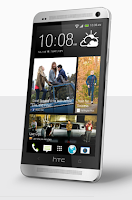
1. First, open the phone app on your device.
2. Then tap
 and go to Speed Dial.
3. Now tap
 and select a contact from the list.
4. On the Speed dial Lcd, choose the phone number of the contact to use
and a speed dial key to assign for that contact.
5. Once your done, tap Save.
Take note that the number 1 key is generally used and reserved for calling voicemail and retrieving voicemail messages.
Thursday, October 9, 2014
Alcatel One Touch 993D Tips and Tricks
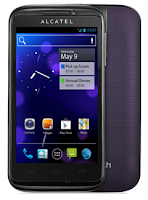
Here are some How Tos for your Alcatel One Touch 993D. These may not yet complete and I am trying to work on the others:
How to Backup and Factory Reset Alcatel One Touch 993D
Resetting your Alcatel One Touch 993D will restore the default settings of your device. It will also delete all your files on your phone, so it is recommended to backup all your important files on your computer.
Luckily in Alcatel One Touch 993D you can backup your phone settings and other application data to Google Servers before wiping all the data on your phone. But if you want to erase all the content on your phone, then there’s no need for you to backup your data.
How to Activate the Backup Function:
• Tap on the Menu key from Home Lcd.
• Select Settings > Backup & reset > Back up my data.
• Then mark the checkbox.
How to Factory Reset:
• Tap on the Menu key from Home Lcd.
• Select Settings > Backup & reset > Factory data reset.
• Then mark the checkbox.
If you are unable to turn on your Alcatel One Touch 993D, then you may need to do the hard reset. Press and hold the Volume up key and the Power key at the same time until the Lcd light up. This process will also factory reset your device.
How to Turn On/Off Wi-Fi on Alcatel One Touch 993D
By connecting to a Wi-Fi network you can surf to the Internet using your One Touch 993D. Just make sure that you are within the range of a wireless network so you will be able to connect your successfully. You can used a Wi-Fi even without a SIM Card.
Follow these steps on how to connect to your wireless network:
• On your Home Lcd, tap on the Menu key.
• Select on Settings.
• You will see a Wi-Fi option, beside on the Wi-Fi, just switch whether on/off.
• Tap on Wi-Fi, there should a detailed information of detected wireless networks.
• Tap on the network you want to connect with.
• If the network is secured with a password, make sure to enter the password correctly.
• Then tap Save.
Battery Life depends on how you use your device. For One Touch 993D device, if you want to save your battery to last longer hours, you may need to adjust your settings. Follow these suggestions:
• Turn on the power-saving option on the device (if applicable).
• Lessen the Lcd brightness and the Lcd lock timeout.
• Turn down your device volume with the volume keys.
• Close any apps or features when you are done using it so they will not continuously running in the background.
• Turn off the network connection if you are out of range so that your device will stop searching for a network signal.
• You should use the latest version of the software update. Software updates improves some features and fixes some bugs on the previous software version.
• Turn off the camera flash.
You can set-up an external POP3 or IMAP email accounts on your One Touch 993D. But for me, I recommend using the Gmail account which is powered by Google, and where you can back up your applications.
How to setup your an email, follow these steps:
• On your HomeLcd, touch on the Application tab.
• There should an email wizard that will guide you through process in setting up an email.
• Enter the email address and password of the account you want to set-up.
• Then tap Next. (You will be prompted to go to email account settings to enter settings manually, if the account is not provided by your service provider.)
• You can also tap on Manual setup to directly enter the incoming and outgoing settings for the email account you are setting up.
• Enter your preferred account name and display name in outgoing emails.
• If you want to add another email account, just tap on Menu key > Settings > Add Account on the right of the title to create.
How to setup your an email, follow these steps:
• On your HomeLcd, touch on the Application tab.
• There should an email wizard that will guide you through process in setting up an email.
• Enter the email address and password of the account you want to set-up.
• Then tap Next. (You will be prompted to go to email account settings to enter settings manually, if the account is not provided by your service provider.)
• You can also tap on Manual setup to directly enter the incoming and outgoing settings for the email account you are setting up.
• Enter your preferred account name and display name in outgoing emails.
• If you want to add another email account, just tap on Menu key > Settings > Add Account on the right of the title to create.
Monday, September 29, 2014
How to Make Your HTC One VX a Wireless Router
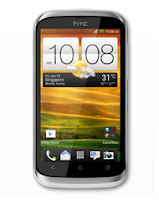
Smartphones these days can now share its mobile data connection and act as a portable Wi-Fi hotspot. And like those high-end gadgets, HTC One VX is sure to let you experience the benefits of making it as a portable Wi-Fi hotspot. Heres how you can make your HTC One VX phone the next Wi-Fi hotspot.
- Slide the Notifications panel open, and then tap the Gear Icon or Settings.
- Under Wireless & Network, tap More.
- Select Mobile network sharing > Portable Wi-Fi hotspot settings.
- Enter your preferred router name, or you can also use the default name.
- Choose the type of security and set a password for your wireless router. (If you selected none, then you dont have to enter a password.)
- Select the Portable Wi-Fi Hotspot option to turn on the wireless router.
When you see the router wireless icon, then your HTC One VX is ready to be used as a router.
Friday, September 26, 2014
How to Take Continuous Camera Shots on HTC One M7
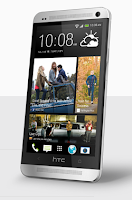
Follow these steps:
1. First, make sure that youre in Normal scene to use this feature.
2. On the Viewfinder Lcd, just press and hold on the Camera icon.
- It should take 20 consecutive shots since it is the default settings.
- If you want to capture more than 20 shots, just tap on the Gear Icon or Settings, then Continuous shooting. After that, clear the Limit to 20 frames option.
3. If you want to keep just one photo, select the photo you like most and then tap Best shot.
4. If you want to save photos as a batch tap the Left arrow icon.
HTC One Evo 3D Tips and Tricks

Here are some How Tos for your HTC One Evo 3D. These How Tos may still not yet complete and I am finding some time to work on the others:
How to Factory Reset (Hard Reset) HTC One Evo 3D
Resetting your HTC One Evo 3D will restore the default settings of your device. It will also delete all your files on your phone, so it is recommended to have a backup of your important files on your computer. There are two ways on how to reset your HTC One Evo 3D. It can be done through the settings or through the hardware buttons.
Resetting HTC One Evo 3D on Settings:
- Slide the Notifications panel open, and then tap the Gear Icon or Settings.
- Select SD & Phone storage.
- Tap Factory data reset.
- If you want to delete all your files, then tap Erase everything.
These steps is also helpful when your HTC One Evo 3D is unresponsive or frozen and theres no way to access the settings.
- First, press and hold the Volume Down button, and then do the same way on the Power button.
- Hold the two buttons until the three Android images appear on the Lcd.
- Release the button when the three Android images appear and press Volume Down.
- Tap on Factory Reset, and then press the Power Button to confirm.
Contacts is very important for everyone of us. We cant connect to our friends without a contact number. If you have a new phone, saving contacts on the phone one by one is so hassle. But now, theres an easy way how to transfer or import your contacts from your old phone to your new phone.
Use your PC to transfer contacts to your new phone. This process is applicable in several phone brands, including iPhone, Samsung, HTC and Nokia.
You just need an Internet Connection on your PC, your old and new phone and their own USB cable.
Then you need to install the PC Companion program. This is a free application and the installation files are already saved on your new phone. This program can also be used in updating your phone software.
Please note that if you are using the Microsoft Windows 7 operating system on your PC, make sure that the AutoPlay setting is enabled.
To check your settings:
Click Start > Control Panel, then type "autoplay" on the search box. Click the AutoPlay, and mark the check box Use AutoPlay for all media and devices.
Installing the PC Companion:
Installing the PC Companion:
- Turn on your new Phone and connect it to your PC.
- On your new Phone, tap "Install" to install PC Companion on the PC.
- On your computer, if a pop-up window that appears notifies you about available PC Software, select Run Startme.exe.
- Then click Install to start the installation and then follow the instructions to complete the installation.
If you are not prompted with a pop-up window to install the PC Companion, you can also download the PC Companion here.
Transferring your contacts to your new phone:
- Make sure that PC Companion is installed on your PC.
- Open the PC Companion application on your PC.
- Then click Contacts Setup and follow the instructions to transfer your contacts.
How to Send a Multimedia Message and Create a Slideshow on HTC One Evo 3D
Text messaging has grown its popularity over the years especially to younger generations. People, especially teens, prefer to communicate with friends and relatives thru texting instead of the traditional call. But whether your reaching out to friends thru text or a call, what matters most is the effort for still trying to keep in touch despite distance and even on busy schedules. We should be more grateful these days as it only takes minutes, even seconds, for a quick response unlike the old school snail mail. Now, everyone is just a text away. And more to that, you can even send multimedia messages (MMS) especially on special occasions to add more touch to a simple text-filled Lcd. Heres how you can send a MMS on HTC One Evo 3D.
1. On your devices homeLcd, tap on
 and go to Messages.
2. Then tap on
3. On the To Field, key in a contact name, mobile number or email address. You can also send it to a group of friends by tapping on

4. To add a subject line, tap on
and go to Add Subject.5. Tap on the box that says Add text and there you can type in your special message.
6. Choose an attachment for your message by tapping on

7. After you browse and select an attachment, tap on Send or press
 to save it as a draft. You can also tap on
 to see options like replacing, viewing and removing your attachment.
Now if you wish your Mutimedia Message to reach an extra mile, you can have it on a slideshow format. Heres how you can create one:
once again and select Slide.2. Then choose where you want to insert the next slide.
3. When youre done adding the next slide, you can either do the following:
- tap onand choose to add a video or a photo
- tap onand then audio if you want to add a voice recording or a music to the slide
- tap on Add Text to add a caption
- tap onto view options like replacing, viewing or removing your attachment.
select Preview. If you dont see Preview, scroll down the menu. To view the playback controls, tap once the preview Lcd.5. When its all set and done, press on or tap on Send to save message as a draft.
or tap on Send to save message as a draft.Now you can make someones day a very special one with this creative and personalize MMS.
How to Set HTC One Evo 3D into Sleep Mode
How to Set HTC One Evo 3D into Sleep Mode
Like any other device, setting HTC One Evo 3D into sleep mode will somehow save its battery life. Sleep mode puts your device into a lower power state while the display is off. It also prevents accidental button presses when its in your pocket or bag. Heres how you can set HTC One Evo 3D into sleep mode.
1. Briefly press on your devices Power button to turn off the display. Then switch to Sleep Mode.
2. To change the time before your device sleeps, just go to Display & buttons settings.
3. To wake it up, manually press the Power button and unlock your Lcd.
4. Your device will also automatically wakes up when you have an incoming call.
How to Extend Battery Life of HTC One Evo 3D
1. Briefly press on your devices Power button to turn off the display. Then switch to Sleep Mode.
2. To change the time before your device sleeps, just go to Display & buttons settings.
3. To wake it up, manually press the Power button and unlock your Lcd.
4. Your device will also automatically wakes up when you have an incoming call.
How to Extend Battery Life of HTC One Evo 3D
Battery Life depends on how you use your device. For HTC One Evo 3D device, if you want to save your battery to last longer hours, you may need to adjust your settings. Follow these suggestions:
• Turn on the power-saving option on the device. Then lessen the Lcd brightness and the Lcd lock timeout.
1. On your Home Lcd, press the Three Horizontal Line icon.
2. Select Settings, and.tap Power.
3. Choose the Enable power saver check box.
4. Tap to turn power saver on.
5. Tap Power saver settings, and then set and select the behavior when HTC EVO
3D switches to power saving mode.
• Turn down your device volume with the volume keys.
• Close any apps or features when you are done using it so they will not continuously running in the background.
• Turn off the network connection if you are out of range so that your device will stop searching for a network signal.
• You should use the latest version of the software update. Software updates improves some features and fixes some bugs on the previous software version.
• Turn off the camera flash.
• The camera viewfinder can be a power drain, so after youve finished taking photos.
• Turn on the power-saving option on the device. Then lessen the Lcd brightness and the Lcd lock timeout.
1. On your Home Lcd, press the Three Horizontal Line icon.
2. Select Settings, and.tap Power.
3. Choose the Enable power saver check box.
4. Tap to turn power saver on.
5. Tap Power saver settings, and then set and select the behavior when HTC EVO
3D switches to power saving mode.
• Turn down your device volume with the volume keys.
• Close any apps or features when you are done using it so they will not continuously running in the background.
• Turn off the network connection if you are out of range so that your device will stop searching for a network signal.
• You should use the latest version of the software update. Software updates improves some features and fixes some bugs on the previous software version.
• Turn off the camera flash.
• The camera viewfinder can be a power drain, so after youve finished taking photos.
How to Clear Call History on HTC One Evo 3D
Either your call logs are just piling up or you simply want to achieve a clean call history list, then you can do the steps below. Heres how to delete or clear call history on your HTC One device.
To delete one name or number
1. On your devices Call History tab, press and hold the name or number you wish
to delete.
2. And tap Delete from call history.
To delete the entire call history list
1. On Call History tab, tap the Three Horizontal Line icon or Settings.
2. Then Delete all.
Either your call logs are just piling up or you simply want to achieve a clean call history list, then you can do the steps below. Heres how to delete or clear call history on your HTC One device.
To delete one name or number
1. On your devices Call History tab, press and hold the name or number you wish
to delete.
2. And tap Delete from call history.
To delete the entire call history list
2. Then Delete all.
Thursday, September 25, 2014
How to Personalize HTC One Launch Bar
1. On your devices homeLcd, tap
to go to the All apps view.2. Now press and hold the app you want to be replaced and then drag it out
of the launch bar.
3. Then press and hold an app you frequently use and drag it to the empty slot
on your launch bar.
If you have couple of apps to place on your launch bar, you can group them into
a folder and place them in the launch bar. Heres how you can group apps into
a folder.
1. On the All apps view of your device, press and hold an app and drag it over
to another app to automatically create a new folder for these apps.
2. To add more apps, press and hold an app and drag it to the folder.
3. Now drag the folder from the All apps view to the launch bar.
4. If you want to remove an app from a folder on the launch bar, you need to
switch first to the All apps view and then drag the app out of the folder.
Congratulations! You have just personalized your HTC One launch bar with your favorite apps.
Wednesday, September 10, 2014
Android Revolution on the HTC One 2014 launch event in London

Can’t wait to see the new HTC One 2014? Don’t worry, we’ll be there for you! Stonelaughter, our precious blog member will be there in London, watching the rebirth of the most awarded smartphone of the year 2013. We’ll have a portion of hot pictures for you as well as detailed description of the device presented on the launch event.
Make sure to keep your eyes on christyaverman.blogspot.comand also follow Stonelaughter on his Twitter profile @Stonelaughter.
And that’s not all. One of our contributors, radiotribis going there too! That means the double fun! Make sure to follow on Twitter that folk too (@kevinsalt) if you want to be the first to discover All The New One!
Be there with us!

Sunday, September 7, 2014
HTC One 4 19 401 11 update in all flavours!

Today the newest 4.19.401.11 OTA for the HTC One has begun rolling out. Due to the official OTA changelog it should fix Wi-Fi problems that some users were having since the Android KitKat update (added support for more routers).
To satisfy all HTC One users, as always Ive prepared both Android Revolution HD based on latest 4.19.401.11 OTA update (link) and also stock system dumps (link). Apart from that under this link you can find original 4.19.401.11 OTA update .zip file for both 4.19.401.8 and 4.19.401.9 software versions.
Once again, here are all the links you need:
Android Revolution HD 53.0 (4.19.409.11) - download
Stock 4.19.401.11 system dumps - download
Original 4.19.401.11 OTA zip package - download
Saturday, September 6, 2014
Sense 6 Toolbox for HTC One HTC One M8

Happy day for all users who love to customize their HTC Sense UI! Sense 6 Toolbox (previously Sense 5 Toolbox) is known to be the best and the most advanced tool to customize your Sense 5/6 based device. It’s based on Xposed eco-system and it allows you to change a lot of settings of the user interface, including colour schemes and different layout styles.
More details can be found here ---> Sense 6 Toolbox with Android Revolution HD
Want to see some goodies it offers? Just take a look!


Some of the features you can find in Sense 6 Toolbox:
Interface mods
· Transparent statusbar and notification drawer
· Center clock, AM/PM removal, traffic meter, horizontal EQS
· Gestures to manipulate recent apps and additional information about each app, AOSP styled recents
· [Sense 6] Custom color themes for every app
Statusbar mods
· Icons by vomer (CleanBeam)
· Customizable color themes for all new statusbar icons
· Ability to hide icons
Sense mods
· Transparency for many UI elements (dock, clock widget, app drawer, folders, etc)
· Infinite apps in folders, 7 home screens, home popup menu, more grid options for homescreens and app drawer
· Actions for vertical swipes and shaking on homescreens, horizontal swipes on dock
Messaging mods
· Wake on SMS, increase MMS size
· Replace delivery notifications with toasts
· Increase MMS size
Controls mods
· Volume2wake
· Activate flashlight on power long press
· Bind actions to hardware buttons (Back long press and swipe up from Home)
· Bind actions to volume keys for camera and music playback controls
· [M8] Smaller softkey bar
Various mods
· Advanced Power Menu
· Show more information about installed apps and apps that are being installed
· Improved screen locking and unlocking
· Hardware buttons backlight control
· Large caller photo in dialer and on lockscreen during calls
· Disable unwanted notifications and confirmation dialogs
· On/off screen animations (Fade, CRT)
Full list of the features can be found here - complete mods list.
Sense 6 Toolbox is tested and fully compatible with Android Revolution HD 5.0 for the HTC One M8 you can download from this xda-developers thread.
Sense 6 Toolbox is tested and fully compatible with Android Revolution HD 5.0 for the HTC One M8 you can download from this xda-developers thread.
Friday, September 5, 2014
Give Away HTC One X
Here is something awesome for Android Revolution HD users. I will give away one, brand new HTC One X+ (GSM only) in color of your choice - black or white, to one winner of this little competition. There is no country limit - its a worldwide party!
The competition starts at 12:00 PM (GMT + 1) on Monday 4th, March 2013 and will continue until 12:00 PM (GMT + 1) on Sunday 10th, March 2013. Winner will be announced on Monday 11th, March 2013.
What you need to do:
1) "Like" HTC (facebook.com/htc) and Android Revolution HD (facebook.com/AndroidRevolutionHD) on Facebook
2) "Follow" HTC (@HTC) and Android Revolution HD (@mike1986_) on Twitter
3) Tweet about this contest with link to this page using hash-tag "androidrevolutionhd" (#androidrevolutionhd)
Example tweet: Win HTC One X+ at http://christyaverman.blogspot.com/2013/02/give-away-htc-one-x.html #androidrevolutionhd
Example tweet: Win HTC One X+ at http://christyaverman.blogspot.com/2013/02/give-away-htc-one-x.html #androidrevolutionhd
Note: If you already meet the requirements from points 1 and 2, now all you need to do is tweet! No need to re-follow or re-like accounts mentioned above. Re-tweets doesnt count. This must be your own tweet. Remember to include link to this contest and hash-tag #androidrevolutionhd.
How will I select the winner? I will randomly choose one person from the list of my Twitter followers who tweeted about this give away using #androidrevolutionhd hash-tag. Is that all? Yes! Easy as that! Just 2 clicks and 1 tweet to win amazing, high-end HTC One X+ - Engadgets Smartphone of the Year!
Good luck!

Subscribe to:
Posts (Atom)