Showing posts with label lg. Show all posts
Showing posts with label lg. Show all posts
Tuesday, November 11, 2014
LG G2 Mini coming this MWC teasers out

Another South Korean multinational is too joining the list of smartphone manufacturers that makes miniature versions of their flagship handsets. Today we see the Lifes Good electronics firm sending out its Press invitations, alongside an image teasing its launch of their front runner G2s Mini version, from the companys own official Facebook page.
We have been hearing this coming since the last week, where today LG seems to be promising us the dates of 24th of this month, where at their event from the Mobile World Congress trade show, we will be fortunate enough to "Experience the Mini", where Koreans are set to announce the G2 Mini smartphone. Unfortunately, there hasnt been any other details of specifications surfacing on the internet at the moment, but do check us back on the aforementioned dates for the legal news.
Source: LG Mobile (Facebook)

LG unveils Android Wear powered G Watch

Well, as said in our last article, we have the first device out, running Androids Wear platform out of the box. The South Korean electronics manufacturer announces their first Android Wear running smartwatch, and their fourth Google collaborated device after the Google Play Edition G Pad 8.3, dubbed as the new LG G Watch.
There is no exact information coming out from LG at the moment of their new fashionable wearable G Watch, nor we know what the kind of internal specification the newly announced smartwatch from LG runs on. Though we have some details to share with you, folks. The Koreans have promised us to introduce their new creation to the global markets for the public in second quarter of this year, where the G Watch will be compatible with a wide range of Android powered smartphones from the current market. The device will screen-in relevant information to users when they need it. As said in the introduction of Android Wear, you will have to use the hotkey, "Okay Google" for the LG made G Watch to answer your questions or get the things done.
It is also read that, the LG G Watch will be a low barrier to entry, seeking new developers, offering the best Google experience for its users.
"The opportunity to work with Google on LG G Watch was the perfect chance for LG to really pull out all stops in both design and engineering. With the LG G Watch, LG is continuing the milestones weve set in wearables following in the foot-steps of the world’s first 3G Touch Watch Phone in 2009 and the Prada Link in 2008. We’re confident that a well-designed device has the potential to take the smart wearable market by storm," said Dr. Jong-seok Park, President and CEO of LG Electronics Mobile Communications Company.
Source: LG
LG G3 screens leaks suggests 2K resolution

As per the leaks, it is rumored that the South Korean manufacturer, LG Corporations next smartphone will be model named LG D850 and will have a 5.5-inches QHD screen with the resolution of 2560 x 1440 display, marked at 534 ppi.
We have got the screenshots proclaiming that the upcoming device will have 2K display. First screenshot is of the lock screen and second one is of the settings tab. It is rumored that LG G3 will run Androids version 4.4 KitKat over the hood. There are now two upcoming handsets that are coming with the 2K displays, first should be the Oppo made Find 7 and now the LG G3. It is expected that the device will be officially announced on 17th of May, 2014. Lets wait and watch for more news about the upcoming device.

.png)
Source: DROID LIFE, LG G3
Wednesday, November 5, 2014
Verizon LG Optimus Exceed 2 leaks in Press render

LGs new smartphone deep in their pipelines for the Big Red Stateside carrier, Verizon Wireless is the new Optimus branded Exceed 2, according to the leading smartphone leakster, evleaks from Twitter.
The new phone is showed up in a new high resolution Press render, wearing the Verizon branded tags on its back. Upcoming LG made Optimus Exceed 2 is the South Korean manufactures successor model to their previous generation Exceed or so called Cayman or Lucid. The original handset was introduced back in 2012, where it carried out a Dual-Core 1.3GHz Snapdragon processor, four-inches screen, eight gigabytes of internal memory with microSD slot expansion, one gigabyte of RAM, five megapixels primary camera, 4G LTE connections and Android 4.0 Ice Cream Sandwich on board. But, accordingly this time around we dont see any kind of 4G LTE prints on the phone yet to go official from the Americans.
Unfortunately we still lack the information on the unannounced smartphones internal specifications listing, but we do expect this new phone to be a middle ranged Android device with a lower price tag from Verizon Wireless offering 3G network support, once announced.
Source: evleaks (Twitter)
Wednesday, October 15, 2014
LG L3 L90 Tips and Tricks How Tos
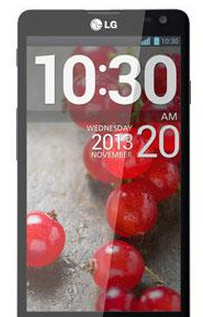
Here are some How Tos for your LG L3 L90. These How Tos are still not yet complete and I am still working on the others:
How to Factory Reset LG L3 L90
Resetting your LG L3 L90 will restore the default settings of your device. It will also delete all your files on your phone, so it is recommended to backup all your important files on your computer.
Luckily in L3 L90, you can backup your data through your phone on privacy settings before wiping all the data on your phone. But if you want to erase all the content on your phone, then there’s no need for you to backup your data.
To backup your data:
You can only backup app data, Wi-Fi passwords, and other settings to Google servers.
Step 1. Tap on the Home Icon > Three Horizontal Lines or Settings.
Step 2. Select System settings > Backup & reset.
Step 3. Double check if the Backup account is correct.
Step 4. Then tap Back up my data. (A blue checkmark will appear.)
Step 5. If you want to set to the automatic restore backups, tap Automatic restore. (A blue checkmark will appear.)
To Factory Reset Your L3 L90:
Step 1. Tap on the Home Icon > Three Horizontal Lines or Settings.
Step 2. Select System settings > Backup & reset.
Step 3. If you want to proceed in restoring the factory settings, tap Factory data reset.
Step 4. Then tap Reset phone.
Step 5. Enter the unlock sequence if you have, then tap Erase everything to confirm.
How To Make Your L3 L90 a WiFi Hotspot
Do you want to share your Internet connection for your friends? With LG L3 L90, you can now share your connection with up to 5-8 devices by turning on the portable Wi-Fi hotspot. You will notice an icon in the Status bar when your phone is sharing a data connection.
Follow these steps on how to make your L3 L90 a WiFi hotspot:
Step 1. Tap on the Home Icon > Three Horizontal Lines or Settings.
Step 2. Select System settings > Tap More.
Step 1. Tap on the Home Icon > Three Horizontal Lines or Settings.
Step 2. Select System settings > Tap More.
Step 3. Then choose Portable WiFi hotspot to activate. (A blue check mark will appear). Your phone should start the broadcasting with its WiFi network name (SSID) so it can connect to other devices.
If you want to change the network name or put a password, tap on Configure WiFi hotspot.
Tap on Network SSID field and enter your preferred name.
Tap on Network SSID field and enter your preferred name.
It is also recommended to put a password so others cant connect without your permission. Tap the Security menu and select WPAP2 PSK (WiFi Protected Access 2 with a Pre-shared Key.). When a password field is added to the dialog box, enter a password. Every time theres a person you will attempt to connect to your Portable WiFi, he/she will need to enter the password.
The SSID Visibility if you want your hotspot to be displayed or not on other devices.
If you want to limit the number of users on your hotspot, tap on Max Users and select the number of phones you want.
Then dont forget to Save the changes you made.
How to Add Applications to the HomeLcd on LG L3 L90
How to Add Applications to the HomeLcd on LG L3 L90
By adding applications on your homeLcd, youre creating a hassle-free phone experience. Important apps or apps that you usually open are accessible if you put it right on your homeLcd instead of going thru lot of tapping and clicking. Now heres how you can add applications that you use most often on your LG L3 L90 smartphone.
1. First you need to tap on .
.
2. Then tap on .
.
3. From there, touch and hold the application you wish to be added to your homeLcd.
4. And lift your finger to place the app on the homeLcd or you can drag the app icon to where you want it on the Lcd and then lift your finger.
Thats it! Youve just customized your homeLcd by adding your must-have apps.
How to Turn On Wi-Fi Direct on LG L3 L90
1. First you need to tap on
.2. Then tap on
.3. From there, touch and hold the application you wish to be added to your homeLcd.
4. And lift your finger to place the app on the homeLcd or you can drag the app icon to where you want it on the Lcd and then lift your finger.
Thats it! Youve just customized your homeLcd by adding your must-have apps.
How to Turn On Wi-Fi Direct on LG L3 L90
In case you dont know what is the use of the Wi-Fi Direct, Wi-Fi Direct will let your device connect directly to other devices that is also Wi-Fi enabled without an access point. You can directly transfer data between the devices connected to each other with reduced setup. Since the Wi-Fi Direct may consume a high battery usage, so it is recommended that you plug your phone into a power outlet while using it.
To turn On your Wi-Fi Direct:
How to Add and Forget a Wi-Fi Network on LG L3 L90To turn On your Wi-Fi Direct:
- Tap on the Home icon, then the Three Horizontal Line or Settings.
- Select System Settings, then More.
- Tap on Wi-Fi Direct. (A blue check will appear once activated.)
- If you want to create a group, then tap Create Group.
- If you want to search more devices, then tap Search.
The steps below will let you show how to add a wi-fi network manually whenever youre out of range or the network itself wont show its SSID. However, if you want to connect to a secured network, you may need to obtain the networks password. Heres how to add a wi-fi network on LG L3 L90.
1. First, you need to turn on WiFi if its not already on.
2. On WiFi settings, tap on Add Network.
3. Then type in the networks name or the SSID. If its a secured network, tap the Secured drop down menu and tap the type of security used in the network.
4. Type in the password or security credentials of the secured network.
5. Tap on Save.
Since you have just saved a password, youre device will automatically connect to the network when you come in range. But if you dont want your phone to connect automatically or if the network is no longer in use, you can do the following steps below:
1.Turn on WiFi.
2. Go to WiFi settings and tap and hold the name of network.
3. And tap on Forget Network.
How to Extend Battery Life of LG L3 L90
Battery Life depends on how you use your device. For LG L3 L90 device, if you want to save your battery to last longer hours, you may need to adjust your settings. Follow these suggestions:
• Turn on the power-saving option on the device.
- To turn on the Power saving mode. Tap on the Home icon > then the 3-Horizontal line or Settings > System settings > Powersaver and drag the switch to the “ON” position.
• Lessen the Lcd brightness and the Lcd lock timeout.
• Turn down your device volume with the volume keys.
• Close any apps or features when you are done using it so they will not continuously running in the background.
• Turn off the network connection if you are out of range so that your device will stop searching for a network signal.
• You should use the latest version of the software update. Software updates improves some features and fixes some bugs on the previous software version.
• Turn off the camera flash.
• The camera viewfinder can be a power drain, so after youve finished taking photos.
Saturday, October 11, 2014
LG Lucid 2 Tips and Tricks
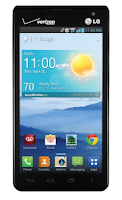
Here are some How Tos for your LG Lucid 2. These How Tos may still not yet complete and I am finding some time to work on the others:
How to Factory Reset (Hard Reset) LG Lucid 2
We have our own reasons why we factory reset our device. Maybe we want to delete all the files and restore the device to its original state. It could also be the device may be malfunctioning or so slow and it needs to be reset.
Restoring the default settings or factory reset your LG Lucid 2 will delete all your existing files. It is recommended to backup your important files on your computer before attempting to reset your device.
The steps below are the instructions on how to factory reset your LG Lucid 2:
Step 1. On your HomeLcd, tap on MENU icon.
Step 2. Select Settings, then select Backup & Reset option.
Step 3. Under Personal Data, tap on Factory Data Reset.
Step 4. Read warning carefully before tapping the Reset phone.
Step 5. If you want to proceed in resetting your device, tap on Erase Everything to confirm the Factory Reset.
Now, you just need to wait while your device is resetting. It should reboot itself and you will have a new start on your LG Lucid 2.
If your LG Lucid 2 is unresponsive, then you may need to do the Hard Reset.
- Press and hold the Power button/Lock Key and Volume Down Key at the same time.
- Hold these buttons until you see the Factory Hard Reset.
- Press the Power Key continue or the Volume Keys to cancel.
- Press the Power Key again to confirm the factory reset, or the Volume Keys to cancel.
- Wait for a few minutes while your phone performing the hard reset. It will turn on in a while..
Battery Life depends on how you use your device. For LG Lucid 2 device, if you want to save your battery to last longer hours, you may need to adjust your settings. Follow these suggestions:
• Monitor what uses your phone battery. .
- On your HomeLcd, tap on the Application tab > then select Settings > About phone > Battery use.
• Lessen the Lcd brightness and the Lcd lock timeout.
• Turn down your device volume with the volume keys.
• Close any apps or features when you are done using it so they will not continuously running in the background.
• Turn off the network connection if you are out of range so that your device will stop searching for a network signal.
• You should use the latest version of the software update. Software updates improves some features and fixes some bugs on the previous software version.
• Turn off the camera flash.
• The camera viewfinder can be a power drain, so after youve finished taking photos.
How to Turn On and Connect to Wi-Fi on LG Lucid 2
The steps below will let you show how to connect to a wi-fi network whenever youre out of range. However, if you want to connect to a secured network, you may need to obtain the networks password. Heres how to connect to a wi-fi network on LG Lucid 2.
1. On your Home Lcd, tap on the Applications tab.
2. Then select Settings.
3. Choose Wireless & Networks, then Wi-Fi settings.
4. Tap Wi-Fi to turn it on and it will begin scanning for available Wi-Fi networks.
5. There should a list of available Wi-Fi networks will be displayed. If it is secured, then it has a locked icon.
6. Touch on the network to you want to connect.
7. If the network is not secured, then confirm by tapping Connect.
8. If the network is secured, then enter the password then tap Connect.
The status bar displays icons that indicate Wi-Fi status.
How to Uninstall Apps on LG Lucid 2
There will come a time that you no longer want to play the app that you have downloaded and want to remove it from your phone (LG Lucid 2). If this time will come, you just need to uninstall or disable the app so it will be removed on your phone.
• Monitor what uses your phone battery. .
- On your HomeLcd, tap on the Application tab > then select Settings > About phone > Battery use.
• Lessen the Lcd brightness and the Lcd lock timeout.
• Turn down your device volume with the volume keys.
• Close any apps or features when you are done using it so they will not continuously running in the background.
• Turn off the network connection if you are out of range so that your device will stop searching for a network signal.
• You should use the latest version of the software update. Software updates improves some features and fixes some bugs on the previous software version.
• Turn off the camera flash.
• The camera viewfinder can be a power drain, so after youve finished taking photos.
The steps below will let you show how to connect to a wi-fi network whenever youre out of range. However, if you want to connect to a secured network, you may need to obtain the networks password. Heres how to connect to a wi-fi network on LG Lucid 2.
1. On your Home Lcd, tap on the Applications tab.
2. Then select Settings.
3. Choose Wireless & Networks, then Wi-Fi settings.
4. Tap Wi-Fi to turn it on and it will begin scanning for available Wi-Fi networks.
5. There should a list of available Wi-Fi networks will be displayed. If it is secured, then it has a locked icon.
6. Touch on the network to you want to connect.
7. If the network is not secured, then confirm by tapping Connect.
8. If the network is secured, then enter the password then tap Connect.
The status bar displays icons that indicate Wi-Fi status.
How to Uninstall Apps on LG Lucid 2
There will come a time that you no longer want to play the app that you have downloaded and want to remove it from your phone (LG Lucid 2). If this time will come, you just need to uninstall or disable the app so it will be removed on your phone.
Uninstalling apps is also necessary if you have less than 10% of space available on your memory, since your phone cannot receive new messages.
Follow these steps on how to uninstall your apps.
Follow these steps on how to uninstall your apps.
- Tap on .
- Select Apps tab, then Settings.
- Then choose Application Manager.
- Once all applications appear, scroll to and select the application you want to uninstall.
- Tap Uninstall.
How to Share Your Data Connection Using USB
By the Mobile Broadband Connect feature on your LG Lucid 2, you can share the phones mobile data connection using a USB.
1. In the Application list, select Settings.
1. In the Application list, select Settings.
2. Then tap on More.
3. From the Tethering & Networks tab, tap Mobile Broadband Connect.
Note: This setting is greyed out if not connected via USB.
3. From the Tethering & Networks tab, tap Mobile Broadband Connect.
Note: This setting is greyed out if not connected via USB.
When your phone is sharing its data connection, an icon appears in the status bar and as an ongoing notification in the notifications drawer.
Thursday, October 9, 2014
How to Backup and Factory Reset LG Optimus G Pro
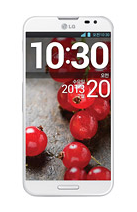
Resetting your Optimus G Pro will restore the default settings of your device. It will also delete all your files on your phone, so it is recommended to backup all your important files on your computer.
Luckily in Optimus G Pro, you can backup your data through your phone on privacy settings before wiping all the data on your phone. But if you want to erase all the content on your phone, then there’s no need for you to backup your data.
To backup your data:
You can only backup app data, Wi-Fi passwords, and other settings to Google servers.
Step 1. Tap on the Home Icon > Three Horizontal Lines or Settings.
Step 2. Select System settings > Backup & reset.
Step 3. Double check if the Backup account is correct.
Step 4. Then tap Back up my data. (A blue checkmark will appear.)
Step 5. If you want to set to the automatic restore backups, tap Automatic restore. (A blue checkmark will appear.)
To Factory Reset Your Optimus G Pro:
Step 1. Tap on the Home Icon > Three Horizontal Lines or Settings.
Step 2. Select System settings > Backup & reset.
Step 3. If you want to proceed in restoring the factory settings, tap Factory data reset.
Step 4. Then tap Reset phone.
Step 5. Enter the unlock sequence if you have, then tap Erase everything to confirm.
Friday, October 3, 2014
How to Uninstall Apps on LG Optimus L5
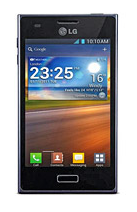
There will come a time that you no longer want to play the app that you have downloaded and want to remove it from your phone (LG Optimus L5). If this time will come, you just need to uninstall or disable the app so it will be removed on your phone.
Uninstalling apps is also necessary if you have less than 10% of space available on your memory, since your phone cannot receive new messages.
Follow these steps on how to uninstall your apps.
- Tap on .
- Select Apps tab, then Settings.
- Then choose Apps from the DEVICE category.
- Once all applications appear, scroll to and select the application you want to uninstall.
- Tap Uninstall.
Saturday, September 27, 2014
How to Extend Battery Life of LG Lucid 2
Battery Life depends on how you use your device. For LG Lucid 2 device, if you want to save your battery to last longer hours, you may need to adjust your settings.
Follow these suggestions:
• Monitor what uses your phone battery. .
- On your HomeLcd, tap on the Application tab > then select Settings > About phone > Battery use.
• Lessen the Lcd brightness and the Lcd lock timeout.
• Turn down your device volume with the volume keys.
• Close any apps or features when you are done using it so they will not continuously running in the background.
• Turn off the network connection if you are out of range so that your device will stop searching for a network signal.
• You should use the latest version of the software update. Software updates improves some features and fixes some bugs on the previous software version.
• Turn off the camera flash.
• The camera viewfinder can be a power drain, so after youve finished taking photos.
Follow these suggestions:
• Monitor what uses your phone battery. .
- On your HomeLcd, tap on the Application tab > then select Settings > About phone > Battery use.
• Lessen the Lcd brightness and the Lcd lock timeout.
• Turn down your device volume with the volume keys.
• Close any apps or features when you are done using it so they will not continuously running in the background.
• Turn off the network connection if you are out of range so that your device will stop searching for a network signal.
• You should use the latest version of the software update. Software updates improves some features and fixes some bugs on the previous software version.
• Turn off the camera flash.
• The camera viewfinder can be a power drain, so after youve finished taking photos.
Monday, September 22, 2014
LG Optimus Chat – LG C550 – LG C555

Find an LG mobile phone that’s designed to fit your life. If you use your mobile phone to stay connected all day, every day, a stylish, LG smartphone with all the bells and whistles is for you. Love to text and send pictures? Choose a QWERTY keyboard phone with built-in camera to text and send high-quality pictures and superior videos. You’ll find everything you’re looking for in a mobile phone, including state-of-the-art displays, GPS navigation and more.
(Source: LG)
List of videos:
Tech Specs:
| LG Optimus Chat – LG-C550 – LG-C555 | |
| General and Software | |
| Countries | Global |
| Series | Optimus |
| Form Factor | Side-Slider |
| Operating System | Android 2.2 Froyo |
| Physical Keyboard | Yes – Fisical QWERTY |
| Announced | 2011 February |
| Status Available | 2011 March |
| Browser & Internet | WebKit browser (HTML, WAP 2.0) |
| Java | MIDP 2.0 |
| Display | |
| Size, diagonal | 2.80 inches - 71.12 mm |
| Display Resolution | 320 x 480 pixels |
| Generalized Pixel Density | 206 ppi |
| TFT LCD – Touchscreen – Capacitive – 262K colors | |
| Connectivity | |
| WAN / Network 2G | GSM: 850 / 900 / 1800 / 1900 MHz |
| WAN / Network 3G | LG-C550: UMTS: 900 / 1700 / 2100 Mhz LG-C555: UMTS: 850 / 1900 |
| WAN / Data | GPRS / EDGE – HSDPA 7.2 Mbps, HSUPA 5.76 Mbps |
| Wireless LAN | Wi-Fi 802.11 b / g / n – DLNA (Digital Living Network Alliance) – Wi-Fi Hotspot |
| Bluetooth | Bluetooth 2.1 + A2DP + EDR |
| USB | MicroUSB 2.0 – Mass storage – Charging connector |
| Audio jack 3,5 mm | Yes |
| GPS / Location Based Services | A-GPS |
| Camera | |
| Camera Resolution (max) | 3 megapixels - 2048x1536 pixels |
| Camera secundary | No |
| Camera Focus | Autofocus |
| Camera Flash | No |
| Additional Camera Features | Geotagging, ISO, White balance |
| Media | |
| Media Formats | Android core media formats |
| Audio Player | MP3, AAC, eAAC+, AAC+, WMV, WAA |
| Video Player | MPEG4, H.263, H.264, WMV |
| Video Recording | Yes |
| Video Playback | Yes |
| Speakerphone | Yes |
| Loudspeaker | Yes |
| Radio FM | Stereo FM radio |
| Voice Recording | Yes |
| Processor and memory | |
| Internal memory | 140MB |
| Memory Card Type | MicroSD |
| Memory Card Size Supported | Up to 32GB |
| Sensors | |
| Proximity Sensor | Yes |
| Notifications | Vibration, MP3, polyphonics |
| Power | |
| Battery Type | Standard battery 1500 mAh |
| Talk time | Up to 5 hours |
| Stand-by time | Up to 400 hours (18.3 days) |
| Variant LG-C555: 1280 mAh – Talk tome 3h 35 m – Stand-by time 320 hours | |
| Divers | |
| Messaging | SMS, EMS, MMS, IM (Google Talk), Email (IMAP, POP3, SMTP), Push Email |
| Games | Yes, downloadable |
| Color | Black, silver, blue, red, pink |
| Phone Book | Yes |
| Organizer | Yes |
| Agenda | Yes |
| Calendar | Yes |
| Task | Yes |
| Notes | Yes |
| Predictive text | Yes |
| Watch | Yes |
| Alarm | Yes |
| Diary | Yes |
| Calculator | Yes |
| Document Viewer | Yes |
| Flight mode | Yes |
| Weight | 134 grams (4.73 oz) |
| Dimensions | 109 x 59 x 16.25 mm (4.29 x 2.32 x 0.64 in) |
| Computer Synchronization – OTA Synchronization | |
| Suite Google Mobile Services | |
Gallery:


Sunday, September 21, 2014
LG Marquee LS855 for Sprint


Prices of LG Marquee LS855 in the web of Sprint (October 7, 2011)
| Tech Specs LG Marquee LS855 | |
| General and Software | |
| Countries | USA – Sprint |
| Other names or variations | LG Optimus Black LG Marquee – LG LS855 |
| Form Factor | Candybar |
| Operating System (earliest) | Android 2.3 Gingerbread |
| Operating System (latest) | Android 2.3 Gingerbread |
| Physical Keyboard | Virtual QWERTY keyboard |
| Announced | 14 September 2011 |
| Status Available | 2 October 2011 |
| Browser & Internet | Full HTML Web Browser |
| Adobe Flash Support | Adobe Flash Player |
| Java | MIDP emulator |
| Display | |
| Size, diagonal | 4 inches – NOVA Display |
| Display Resolution | 480 x 800 pixels |
| TFT, Touchscreen, Capacitive, 16M colors | |
| Connectivity | |
| WAN / Network 2G | CDMA 800 / 1900 Mhz |
| WAN / Data | CDMA2000 EVDO Rev A |
| 4G | No |
| Wireless LAN | Wi-Fi 802.11 b / g / n – Mobile Hotspot – DLNA |
| Bluetooth | Bluetooth v.3.0 with A2DP, EDR |
| Bluetooth Profiles | EDR, A2DP, AVRCP, GAVDP, HFP 1.5, PBAP, HSP, FTP, GOEP, SDAP/SDP, DUN, OPP, SPP, Stereo Streaming, AVDTP, and OBEX |
| USB | MicroUSB v.2.0 – Mass Storage – Charging connector |
| Audio/Video Output | No |
| Audio jack 3,5 mm | Yes |
| Infrared port | No |
| GPS / Location Based Services | GPS |
| Camera | |
| Camera Resolution (max) | 5 megapixels |
| Camera secundary | 2.0 Megapixel Front-Facing Camera |
| Camera Focus | Auto focus |
| Camera Flash | Flash LED |
| Media | |
| Audio Player | MP3, WMA, AAC, AAC+ |
| Video Player | Yes |
| Video Recording | 720p HD – 1280x720 pixels |
| Video Playback | 720p HD – 1280x720 pixels |
| Speakerphone | Yes |
| Loudspeaker | Yes |
| Radio FM | Stereo FM radio with RDS |
| Voice Recording | Yes |
| Processor and memory | |
| Processor / SoC | Single core |
| Processor Clock Speed | 1 GHz |
| RAM | 512MB |
| Internal memory | 4GB |
| Memory Card Type | MicroSD |
| Memory Card Size Supported | Up to 32GB – 2GB microSD card included |
| Sensors | |
| Accelerometer (autorotate) | Yes |
| Digital Compass – Magnetometer | Yes |
| Proximity Sensor | Yes |
| Ambient Light Sensor | Yes |
| Notifications | Vibration, MP3, polyphonics |
| Power | |
| Battery Type | Li-Ion 1500 mAh |
| Talk time | Uup to 6 hours, 30 mins |
| Divers | |
| Messaging | SMS, EMS, MMS, Email (IMAP4 / SMTP / POP3), IM (Google Talk), Microsoft Exchange |
| Games | Yes, downloadable |
| Color | Black |
| Phone Book | Yes |
| Organizer | Yes |
| Agenda | Yes |
| Calendar | Yes |
| Task | Yes |
| Notes | Yes |
| Voice memo | Yes |
| Predictive text | Yes |
| Watch | Yes |
| Alarm | Yes |
| Diary | Yes |
| Calculator | Yes |
| Documend Viewer | Yes |
| Flight mode | Yes |
| Weight | 112 grams (3.95 oz) |
| Dimensions | 122 x 64 x 9 mm (4.80 x 2.52 x 0.36in) |
| Android platform – Social networking integration | |
| Gmail – Google Calendar – Google Contact Sync – Google Latitude – Google Maps Street View – Google Maps – Google Maps Navigation – Google Quick Search Box – Google Talk – Google eBooks – Google Search by Voice – YouTube | |
| Computer Synchronization – OTA Synchronization | |
| Sprint Zone: Sprint ZoneSM - Your one-stop source to access your wireless account, phone tips, news, a list of top apps and more. Access Sprint TV, GPS Navigation, NASCAR Sprint Cup MobileSM and Sprint Music Plus. | |
| Sprint ID: The latest Android innovation from Sprint, allows you to instantly personalize your phone to complement your needs and interests. | |
Gallery:


Subscribe to:
Posts (Atom)