Showing posts with label Fi. Show all posts
Showing posts with label Fi. Show all posts
Sunday, October 5, 2014
How to Make Your Sony Xperia SP a Wi Fi Hotspot

1. On your devices homeLcd tap on
 .
.2. Then tap on Settings and go to select More...
3. Choose Tethering & portable hotspot.
4. Tap Portable Wi-Fi hotspot settings, then Configure Wi-Fi hotspot.
5. Enter the Network SSID for the network, and tap the Security field to select a
security type. (Enter a password if required).
6. Tap Save.
7. Mark the Portable Wi-Fi hotspot checkbox. Your device starts broadcasting its
Wi-Fi network name (SSID).
8. Unmark the Portable Wi-Fi hotspot checkbox when you want to stop sharing
your data connection via Wi-Fi.

Friday, October 3, 2014
How to Make Your Samsung Galaxy Young a Portable Wi Fi Hotspot
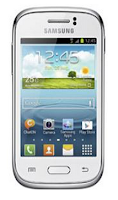
1. On your device, go to Settings Lcd first.
2. Then tap Wi-Fi and tap
 for more options.
3. Select Advanced options to customize your Wi-Fi settings.
4. Go to Tethering and portable hotspot.
5. And choose Portable Wi-Fi hotspot to share the devices mobile network connection.
And you now have a portable Wi-Fi hotspot using your Samsung Galaxy Young.
Wednesday, October 1, 2014
How to Make Your Samsung Galaxy S3 a Wi Fi Hotspot
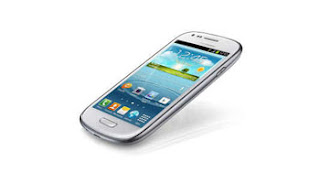
1. In the Application list, select Settings.
2. Then tap on More Settings.
3. Choose Tethering and portable hotspot.
4. Tap on Portable Wi-Fi hotspot
3. Choose Tethering and portable hotspot.
4. Tap on Portable Wi-Fi hotspot
5. Then drag the Portable Wi-Fi hotspot switch to the right to activate mobile network sharing via Wi-Fi
6. Select Configure to configure network settings to use your device as an AP.
7. Tap on Save.
8. Now, on another device, locate your device’s name and connect to your mobile network.
You can restrict mobile network sharing to specified devices. Select Allowed device list, create a device list, and then select your device’s name to change the sharing mode to Only allowed devices.
Sunday, September 28, 2014
How to Transfer Files Using Media Transfer Mode Via Wi Fi on Sony Xperia ZL
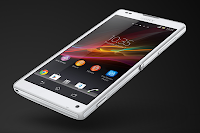
Note: You will need a Wi-Fi enabled devices that supports Media transfer such as a computer running Microsoft, Windows Vista orWindows 7.
To pair your device with the computer:
- Check if the media transfer mode of your device is enabled. It is normally enabled by default.
- Using the USB cable, connect your device to a computer.
- On your computer, once the name of your device appear, click on Network Configuration and just follow the steps on how to pair the computer.
- After pairing, safely disconnect your device from your computer.
These steps will work only on Windows 7 OS and the computer is connected to the Wi-Fi Access point via network cable.
To connect paired devices wirelessly in Media Transfer Mode:
- First things first, check if the media transfer mode is enabled.
- On your Home Lcd, tap on the Menu icon.
- Select Settings > Xperia > USB connectivity.
- Then tap the paired device that you want to connect to under Trusted devices.
- Tap connect.
If you want to disconnect, just tap on the paired device and tap Disconnect.
If you want to remove the paired device, tap on the paired device you want to remove and select Forget.
Saturday, September 27, 2014
How to Make Your Nokia Lumia 520 a Wi Fi Hotspot
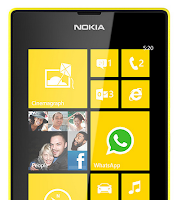
1. On your Start Lcd, swipe left, and tap
 Settings.
2. Then select Internet sharing.
3. Switch the Sharing to On.
4. If you want to change the name of your connection, tap Setup > Broadcast name, then enter the name.
3. Switch the Sharing to On.
4. If you want to change the name of your connection, tap Setup > Broadcast name, then enter the name.
5. If you want to secure your Wi-Fi hotspot, then you can also type in a password for the connection.
6. Then select the connection on the other device.
Wait for few seconds and your phone will start broadcasting its WiFi network name. Now you’re ready to connect your other device to your portable mobile wifi hotspot.
Note: "The other device uses data from your data plan, which may result in data traffic costs. For info on availability and costs, contact your network service provider", Nokia.
Nokia Lumia 520 User Manual PDF FREE Download
Thursday, September 25, 2014
How to Turn Wi Fi On and Connect to a Wi Fi Network on ZTE Avid 4G
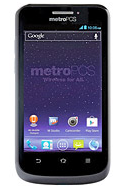
1. Press the Home Key > Menu Key > System settings > Wi-Fi.
2. Then slide the Wi-Fi switch to the ON position to turn on Wi-Fi.
You phone will automatically searches for Wi-Fi networks in range and displays their names and security settings. Your phone also connects to previously linked networks when they are in range.
3. Touch a network name to connect to it. If the network is secured, enter a password or other credentials.
Adding a Wi-Fi Network:
You can add a Wi-Fi network if it does not broadcast its name (SSID), or when it is not in range.
1. Press the Home Key > Menu Key > System settings > Wi-Fi.
2. Then slide the Wi-Fi switch to the ON position.
3. Tap ADD NETWORK and enter the network SSID (name). If necessary, enter security or other network configuration details.
4. Then tap Save.
Tuesday, September 23, 2014
Motorola Motokey Wi Fi EX116


Tech Specs:
| Motorola Motokey Wi-Fi EX116 | |
| General and Software | |
| Countries | Mexico |
| Other names or variations | Motorola MOTOGO! (variation) Motorola Clutch + i475 (predecessor) Motokey Wi-Fi EX116 |
| Form Factor | Candybar |
| Operating System | MTK RTOS |
| Physical Keyboard | QWERTY keyboard |
| Announced | 2012 April |
| Status Available | 2012 April |
| Additional Navigation Control | Facebook dedicated key |
| Browser & Internet | Opera Mobile - WAP 2.0, HTML |
| Java | MIDP |
| Display | |
| Size, diagonal | 2 inches - 50.8 mm |
| Display Resolution | 176 x 220 pixels |
| TFT – 262K colors | |
| Connectivity | |
| WAN / Network 2G | GSM: 850 / 900 / 1800 / 1900 MHz |
| WAN / Data | GPRS / EDGE Class 10 |
| Wireless LAN | Wi-Fi IEEE 802,11 b / g |
| Bluetooth | Bluetooth v2.1 + EDR + A2DP |
| Bluetooth Profiles | FTP, OPP, DUN, SPP, A2DP, AVRCP |
| USB | MicroUSB – Mass storage – Charging connector |
| Audio jack 3,5 mm | 3.5 mm audio jack |
| Camera | |
| Camera Resolution (max) | 2 megapixels – 1600 x 1200 pixels |
| Camera secundary | No |
| Camera Focus | Fixed |
| Camera Flash | No |
| Camera Zoom (max) | Zoom digital 4x |
| Media | |
| Audio Player | MP3, AAC, AAC+, MIDI |
| Video Player | MPEG4, H.263, H.264 |
| Video Recording | Yes |
| Video Playback | Yes |
| MP3 Player | |
| Radio FM | FM stereo with RDS |
| Voice Recording | Yes |
| Processor and memory | |
| RAM | 512MB |
| ROM | 512MB |
| Memory Card Type | microSDHC |
| Memory Card Size Supported | Up to 32 GB |
| Sensors | |
| Notifications | MP3, Polyphonic, Light single color |
| Power | |
| Battery Type | Standard 750 mAh |
| Talk time | 8 hours 20 mins |
| Stand-by time | 500 hours |
| Divers | |
| Messaging | SMS, MMS, IM (Google Talk), Email (IMAP, POP, SMTP) |
| Games | Yes |
| Color | White, Black, Pink |
| Phone Book | 1000 entries + photo |
| Organizer | Yes |
| Agenda | Yes |
| Calendar | Yes |
| Task | Yes |
| Notes | Yes |
| Predictive text | Yes |
| Watch | Yes |
| Alarm | Yes |
| Diary | Yes |
| Calculator | Yes |
| Flight mode | Yes |
| Weight | 87 grams |
| Dimensions | 102 x 59 x 128 mm |
| Facebook, Twitter and Orkut | |
| Computer Synchronization – OTA Synchronization | |
| Facebook, Twitter | |
Gallery:


Subscribe to:
Posts (Atom)