Showing posts with label Connect. Show all posts
Showing posts with label Connect. Show all posts
Friday, October 10, 2014
How to Start the Smart Connect Application on Sony Xperia L

1. On your devices home Lcd, tap on Menu icon

2. Look for Smart Connect and tap on it.
3. If its your first time opening the said app, tap on OK to close the introduction Lcd.
4. Go to Events tab and tap on the plus (+) icon.
5. Type in a name for the event and tap on Create.
6. Under When, add either an accessory ( like what happens on your device when you connect your headset) or a time interval or could be both.
7. Under Do This, add what you want to happen on your device.
8. Under At the End, add what you want to happen to your device when you disconnect your accessory or when the time interval ends.
9. Press on Back Arrow
 to save the event.
Thursday, September 25, 2014
How to Turn Wi Fi On and Connect to a Wi Fi Network on ZTE Avid 4G
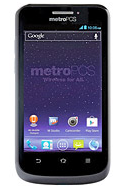
1. Press the Home Key > Menu Key > System settings > Wi-Fi.
2. Then slide the Wi-Fi switch to the ON position to turn on Wi-Fi.
You phone will automatically searches for Wi-Fi networks in range and displays their names and security settings. Your phone also connects to previously linked networks when they are in range.
3. Touch a network name to connect to it. If the network is secured, enter a password or other credentials.
Adding a Wi-Fi Network:
You can add a Wi-Fi network if it does not broadcast its name (SSID), or when it is not in range.
1. Press the Home Key > Menu Key > System settings > Wi-Fi.
2. Then slide the Wi-Fi switch to the ON position.
3. Tap ADD NETWORK and enter the network SSID (name). If necessary, enter security or other network configuration details.
4. Then tap Save.
Subscribe to:
Posts (Atom)