Showing posts with label start. Show all posts
Showing posts with label start. Show all posts
Friday, October 10, 2014
How to Start the Smart Connect Application on Sony Xperia L

1. On your devices home Lcd, tap on Menu icon

2. Look for Smart Connect and tap on it.
3. If its your first time opening the said app, tap on OK to close the introduction Lcd.
4. Go to Events tab and tap on the plus (+) icon.
5. Type in a name for the event and tap on Create.
6. Under When, add either an accessory ( like what happens on your device when you connect your headset) or a time interval or could be both.
7. Under Do This, add what you want to happen on your device.
8. Under At the End, add what you want to happen to your device when you disconnect your accessory or when the time interval ends.
9. Press on Back Arrow
 to save the event.

Friday, October 3, 2014
How to Personalize the Start Screen on Nokia Lumia 520
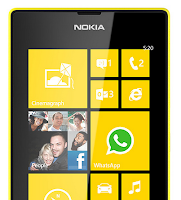
To pin an app:
1. On your devices Lcd swipe left to go to the apps menu.
2. Then tap and hold the app you wish to pin on the start Lcd.
3. And tap pin to Start.
To pin a contact:
1.First tap
 People.
2. Then tap and hold the contact you wish to pin on the start Lcd.
3. And tap pin to start. By pinning your a contact on the start Lcd, youll be able
to see their feed updates on the tile and you can call them directly from the
start Lcd.
To pin a website:
1. Go to a website that you want to access instantly .
2. Then tap
 and choose pin to start.
To move a tile:
1. Just tap and hold the tile.
2. Then drag and drop it to the new location and finally tap the Lcd.
To resize a tile:
1. Tap and hold the tile you want to resize
2. And tap the arrow icon.
To unpin a tile:
1. Tap and hold the tile.
2. And tap

Saturday, September 27, 2014
How to Start a Conference Call on Sony Xperia Go

1. If youre on an ongoing call, tap
 .
2. Then dial the number of the second participant and tap
 .
3. When the second participant answers the call, the first call is put on hold.
4. Tap on
 to start the conference call. Repeat the same steps to add more participants to the conference call.
To have a private conversation with one of the participants
1. Tap the button showing the number of participants during the ongoing conference call.
2. Then tap on the name of the participant you wish to talk privately.
3. To end the conversation and return to the conference call, tap
To release a participant during the ongoing conference call
1. Tap the button showing the number of participants during the ongoing conference call.
 next to the participant you want to release from the call.
To end the conference call
1. During the conference call, just tap End Conference Call.
Tuesday, September 9, 2014
How to Start a Conference Call on Sony Xperia S
 With conference call you can talk to two or more parties simultaneously right thru your phone. Adding multiple participants even if your on a call is just few taps away with Sony Xperia S. Heres how to create a conference call.
Wednesday, September 3, 2014
Sony to Launch Quad Core Smartphone Start Year 2013 Budget
Sony to Launch Quad-Core Smartphone Start Year 2013 Budget - MediaTek has announced that Sony Mobile has formally requested a sample MT6589 quad-core SoC for testing purposes.
If this trial goes smoothly, Sony Mobile is likely to launch a quad-core smartphones will be priced at an affordable price in the year 2013.

MediaTek MT6589 uses Cortex A7 processor speeds up to 1.2GHz, and supports LPDDR2 RAM. The chip also uses SGX544 PowerVR GPU is capable of handling the screen with a maximum resolution of 720 x 1280 pixels. And also this chip is also capable of supporting up to 13-megapixel camera, and is able to provide 1080p HD video recording capabilities.
In addition to Sony, there are some other giant manufacturers such as LG and Motorola are going to use this MT6589. Then in 2013 will scatter cheap quad core smartphone.
Subscribe to:
Posts (Atom)