Showing posts with label Application. Show all posts
Showing posts with label Application. Show all posts
Monday, November 24, 2014
Download Address Book Application for Blackberry ★ 1 Click Address book APP
BlackBerry users usually call up the Address Book application to quickly find a phone number or e-mail or to enter new contact information. Being able perform these actions quickly is important.
If you have a fairly large list of contacts in your Address Book, quickly finding the right entry when composing an e-mail or making a phone call maybe can be frustrating, especially if you remember only a tiny bit of the contact’s information.
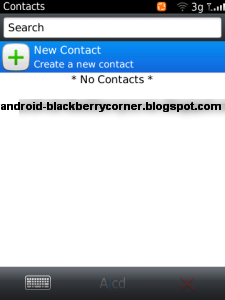
For maximum efficiency, start by keeping your Address Book sorted in the same way you are likely to look for contacts. If you are in sales and generally organize your contacts by company, sort your Address Book by company. Similarly, if you are more comfortable searching by last name, set your sort option to use last names.
When you add a contact to the Address Book in a hurry, you sometimes enter only the minimum amount of information necessary, such as name and phone number. When editing an Address Book entry, the phone fields (Work, Home, Mobile, and so on) all allow you to enter their values using the number keys. You do not have to use the ALT key when entering numbers for these fields.
When you add a contact to the Address Book in a hurry, you sometimes enter only the minimum amount of information necessary, such as name and phone number. When editing an Address Book entry, the phone fields (Work, Home, Mobile, and so on) all allow you to enter their values using the number keys. You do not have to use the ALT key when entering numbers for these fields.
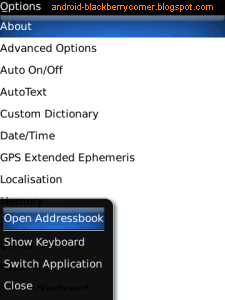
Do you want access your BlackBerry contacts from any where in your BlackBerry?
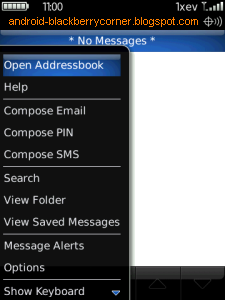
Use "1-Click Address book APP" to manage address book in your Blackberry. This app will add the menu item for all applications. So you can access your BlackBerry contacts from any where. Just by clicking the “Open Address book” in menu item you can access contacts from any where. This application is one of the best plug-in for your BlackBerry Address book. Use this tool save your time and battery. This app will help you to access your BlackBerry contacts very easily.
Use "1-Click Address book APP" to manage address book in your Blackberry. This app will add the menu item for all applications. So you can access your BlackBerry contacts from any where. Just by clicking the “Open Address book” in menu item you can access contacts from any where. This application is one of the best plug-in for your BlackBerry Address book. Use this tool save your time and battery. This app will help you to access your BlackBerry contacts very easily.

DOWNLOAD 1-Click Address book APP
Features "1-Click Address book APP" for Blackberry :
- One click to access the BlackBerry® Address book from any where.
- No need to run BlackBerry Address book as a background application. So save your battery.

Friday, October 10, 2014
How to Start the Smart Connect Application on Sony Xperia L

1. On your devices home Lcd, tap on Menu icon

2. Look for Smart Connect and tap on it.
3. If its your first time opening the said app, tap on OK to close the introduction Lcd.
4. Go to Events tab and tap on the plus (+) icon.
5. Type in a name for the event and tap on Create.
6. Under When, add either an accessory ( like what happens on your device when you connect your headset) or a time interval or could be both.
7. Under Do This, add what you want to happen on your device.
8. Under At the End, add what you want to happen to your device when you disconnect your accessory or when the time interval ends.
9. Press on Back Arrow
 to save the event.
Subscribe to:
Posts (Atom)