Showing posts with label tablet. Show all posts
Showing posts with label tablet. Show all posts
Saturday, November 22, 2014
ZTE unveils tablet with a camera phone Front accuracy 13 megapixel
Belongs "Nubia X 6" Nubia X6, a name that launched the company on her new, to the category of mobile tablet, it offers a screen measuring 6.3 inches, and a passive "Qualcomm Snapdragon 801" quad-core, and operated by a battery with a capacity of 4250 mAh courier.
The phone comes new Pkamirtin precisely 13 megapixel front and rear the same accuracy.
The degree of clarity in the phones display, "Nubia X 6" to 1920 × 1080 pixels and the number of pixels per inch per to 344, this phone has an external structure is made of aluminum and supports Dual touch.
The phone will be available in two trims new tablet in terms of the capacity of RAM, 2 GB offers the first and the second with a capacity of 3 GB.
And features a camera phone company "ZTE" to the front side of high precision provided by, sensor "Exmoor RSS" EXMOR RS of "Sony" is able to capture high-quality images even in low-light conditions.
It is the code, the device runs the new version 4.3 "Jelly between the" operating system "Android" with the interface Free meals "Nubia 2.0" which allows the user to divide the screen into two distinct parts, each comprising a separate application works.
The company intends to "ZTE" put the phone "Nubia X 6" first in the Chinese market and then in global markets later this year, according to a company spokeswoman.
The starting price of the new phone to U.S. $ 487 for the model 2 GB of RAM and 32 GB of internal storage memory, as it will be available in two colors, white and gold.

Microsoft Provide Its Tablet Surface Pro 2 With A New Processor
The updated tablet has 10.6-inch display and its available with 899$. Its noted that Microsoft intend to release a new "Surface" tablet support the 4G networks.
Tuesday, November 18, 2014
Samsung Galaxy Note 10 1 a new generation on tablet
In previous, Samsung launched its Galaxy S3 smartphone in order to complete with the new iPhone. Now The Galaxy Note 10.1 is Samsung’s latest attempt to take on the iPad and threaten Apples dominance in the tablet market, with new features of the stylus pen. The new Galaxy Note 10.1 creates a new generation on the tool tablet.
The new tablet features several standout design decisions that make it absolutely stand out from the crowd. Besides Inside rocks with a 1.4GHz quad-core processor in addition to 2GB RAM, the new Note, is also a tablet featuring a 10.1 inch LCD display, the aforementioned processor and ram package, a 5 megapixel rear camera with LED flash and a 1.9 megapixel camera in the front for video calling. Also the Note equipped with a special S Pen.
Now let’s preview what we can do with the new Galaxy Note 10.1.
1.Multi-tasking on the same Lcd
With original multi-Lcd display function, the user can watch video while browsing; you can take notes while watching video, which makes the tablet to achieve PC-class real personal experience.
2.High quality games for quad-core

3.Professional image processing software

Samsung GALAXY Note 10.1 can be the best learning tool with the function of painting. Schoolchildren can complete the task by Galaxy Note 10.1, through easily sketched standard geometry and writing formulas. While Undergraduate and graduate instructional can view videos online, and use the S Note take notes while watching video at the same time.
With the systems become more and more perfect nowadays, the hardware now has been basically one in demand. The main competition for the future of the tablet market is gradually transferred from the hardware to the competition in features and applications. Unlikely used the tablet for entertainment in past, Samsung Galaxy Note is undoubtedly the first step in market, make the tablet become a necessity of life, let the tablet become a tool to simplify life. In this sense, Galaxy Note creates a new generation on tablet.
Sunday, November 16, 2014
Nokia Prepare 3D Display Device and Tablet Windows 8
Nokia is preparing for the possibility of some additional products for Microsoft than Windows Smartphone Phone 7. One such product is a dual-screen device that can display 3D images, while the other is a tablet Windows 8.

Both these gadgets have not confirmed its existence by Nokias device with dual screen is visible from a patent application by Nokia on April 21, then under the name "Autostereoscopic Rendering and Display Apparatus" or a display device and processing autostereoskopik.
According to those files, this device consists of a sensor arranged to detect the position and orientation of ones view of the auto-stereoscopic display.
There is also a processor that is configured to determine the surface of an object that can be seen in 3D user, and an image generator arranged to create an image received by the right eye and left a visible 3D auto-stereoscopic.
From the pictures included in the patent is expected to have a 3D image processing screens and other screens such as the 2D image processing for shadows and reflections that will change according to eye position. There was no indication the user needs to wear special glasses so that the estimated Nokia would use technology like the Nintendo 3DS or better.
While the news about Windows 8 Nokia tablet is a result of a partnership with Microsoft. This news comes from rumors that issued Eldar Murtazin saying that Nokia will launch at least one tablet of Windows 8 models by 2012 or no later than 2013.
There is also information that Nokia will continue to release a Symbian-based devices in 2012 as many as 5-7 handsets upper middle class is being focused to make the phone even though Windows Phone 7. It also said that Maemo device 6 is not going to walk again with only produce as many as 92 thousand units.
Eldar also said that Nokia set a target of the global smartphone market share of 21% in 2011, and the overall mobile phone market share target of 27%.
Read here..
Both these gadgets have not confirmed its existence by Nokias device with dual screen is visible from a patent application by Nokia on April 21, then under the name "Autostereoscopic Rendering and Display Apparatus" or a display device and processing autostereoskopik.
According to those files, this device consists of a sensor arranged to detect the position and orientation of ones view of the auto-stereoscopic display.
There is also a processor that is configured to determine the surface of an object that can be seen in 3D user, and an image generator arranged to create an image received by the right eye and left a visible 3D auto-stereoscopic.
From the pictures included in the patent is expected to have a 3D image processing screens and other screens such as the 2D image processing for shadows and reflections that will change according to eye position. There was no indication the user needs to wear special glasses so that the estimated Nokia would use technology like the Nintendo 3DS or better.
While the news about Windows 8 Nokia tablet is a result of a partnership with Microsoft. This news comes from rumors that issued Eldar Murtazin saying that Nokia will launch at least one tablet of Windows 8 models by 2012 or no later than 2013.
There is also information that Nokia will continue to release a Symbian-based devices in 2012 as many as 5-7 handsets upper middle class is being focused to make the phone even though Windows Phone 7. It also said that Maemo device 6 is not going to walk again with only produce as many as 92 thousand units.
Eldar also said that Nokia set a target of the global smartphone market share of 21% in 2011, and the overall mobile phone market share target of 27%.
Monday, October 13, 2014
How to Add a Shortcut on Sony Xperia Z2 Tablet Homescreen
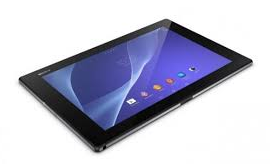 Just like a desktop, it also works best on any smartphones to add a shortcut on a homeLcd. This r somehow makes navigation, especially to important files/apps, more accessible. Its less hassle and less tapping. Sony Xperia Z2 Tablet definitely allows you to make your device experience stress-free by adding a shortcut to important apps on your homeLcd. Heres how to do it.
1. On your devices homeLcd, touch and hold and empty area until the device vibrates.
2. After doing so, tap on Apps.
3. Then go to Shortcuts and select a shortcut.
4. Or another option, just go directly to the Application Lcd and touch and hold the application.
Sunday, October 12, 2014
Sony Xperia Z2 Tablet Tips and Tricks How Tos
Here are some tricks for your Sony Xperia Z2 Tablet. Visit this site more often for updates and some tips. You can also submit your concern at our contact us form on the sidebar. If your device is not listed on this site and you are having problems with it. Dont hesitate to contact us, we will try to respond on your emails within 24-hours.
How to Factory Reset Sony Xperia Z2 Tablet
We have our own reasons why we factory reset our device. Maybe we want to delete all the files and restore the device to its original state. It could also be the device may be malfunctioning or so slow and it needs to be reset.
Restoring the default settings or factory reset your Sony Xperia Z2 tablet will delete all your files. It is recommended to backup your important files on your computer before attempting to reset your device.
There are two ways on how to reset your Sony Xperia Z2 tablet. One is to erase everything, wiping your files and restoring the default settings. The other one is to reset the device without deleting your personal data.
How To Reset Your Sony Xperia Z2 (Erasing All Your Files):
- On your Home Lcd, tap Apps icon.
- Go to Settings, and select Backup & reset.
- Tap on Factory data reset.
- Then Reset tablet.
- Confirm by tapping Erase everything. You just need to wait while your phone deleting your files and restoring your settings to default.
How To Reset Without Erasing Your Personal Data:
- On your Home Lcd, tap Apps icon.
- Go to Settings, and select Backup & reset.
- Tap on Settings reset.
- Then Reset tablet.
- Confirm by tapping Reset settings.
- Wait while your phone restoring your settings.
Warning: To avoid permanent damage to your device, do not restart your device while a reset procedure is underway.
How to Set Up Voicemail Service on Sony Xperia Z2 Tablet
Voicemail services depends on your subscription plan with your service provider. This feature allows caller to leave voice messages on your phone whenever you cant pick up. Your voicemail number may be found on your sim card or you can get it directly from your service provider. Here are the steps to set up voicemail service on Sony Xperia Z2 tablet.
To set up your voicemail number:
1. On your devices homeLcd, tap on Menu icon to enter your voicemail number.
2. Go to Settings menu.
3. Select Call Settings and choose Voicemail Settings.
4. Tap on Voicemail number so you can enter your designated voicemail service number.
5. And lastly tap on OK.
To call your voicemail service number:
1. On your homeLcd, tap on the Menu icon.
2.Look for Phone and tap it.
3. And touch and hold for seconds the number 1.
Voicemail services depends on your subscription plan with your service provider. This feature allows caller to leave voice messages on your phone whenever you cant pick up. Your voicemail number may be found on your sim card or you can get it directly from your service provider. Here are the steps to set up voicemail service on Sony Xperia Z2 tablet.
To set up your voicemail number:
1. On your devices homeLcd, tap on Menu icon
to enter your voicemail number.2. Go to Settings menu.
3. Select Call Settings and choose Voicemail Settings.
4. Tap on Voicemail number so you can enter your designated voicemail service number.
5. And lastly tap on OK.
To call your voicemail service number:
1. On your homeLcd, tap on the Menu icon
.2.Look for Phone and tap it.
3. And touch and hold for seconds the number 1.
Battery Life depends on how you use your device. For your Sony Xperia Z2 Tablet device, if you want to save your battery to last longer hours, you may need to adjust your settings. Follow these suggestions:
• Turn on the power-saving option on the device. Then lessen the Lcd brightness and the Lcd lock timeout. On the HomeLcd, tap on Menu icon. Select Settings > Power management.
- Use the Stamina mode and Low battery mode features.
- To activate the STAMINA mode: While you are in the Power management, tap on Point icon next to STAMINA mode, then tap Activate.
• Turn down your device volume with the volume keys.
• Close any apps or features when you are done using it so they will not continuously running in the background.
• Turn off the network connection if you are out of range so that your device will stop searching for a network signal. To turn off the network go to Settings and turn off the Bluetooth and Wi-Fi.
• You should use the latest version of the software update. Software updates improves some features and fixes some bugs on the previous software version.
• Adjust your brightness level to low.
• Turn off the camera flash.
• If you have any live wallpaper, Disable it.
• Set the synchronization application to manual. You can also choose the automatic, but increase the synchronization intervals.
• If you want to listen to music, use the Sony original hands free device. It demand less battery power than your devices own loudspeakers.
Wouldnt it be nice if youre phone automatically plays your song list right when you step in your car? Or what about letting you show your whole day agenda the moment you arrive at your work table between 8-9am? These are just examples on how Sony Xperia Z2 Tablets Smart Connect app works. With this app, you can set an event to happen on your device at certain times or what will happen when you connect/disconnect accessories like headset or charger. Hereshow to use it.
1. On your devices home Lcd, tap on Menu icon
2. Look for Smart Connect and tap on it.
3. If its your first time opening the said app, tap on OK to close the introduction Lcd.
4. Go to Events tab and tap on the plus (+) icon.
5. If you are creating an event for the first time, tap OK again to close the introduction Lcd.
6. Add conditions under which you want to trigger the event. A condition could be the connection with an accessory, or a specific time interval, or both.
7. Tap Right Arrow icon to continue.
8. Add what you want to happen when you connect an accessory, and set other settings as desired.
9. Tap Right Arrow icon to continue.
10. Set an event name, then tap Finish.
Transferring files in Sony Xperia Z2 Tablet is now made easy by using the Media Transfer Mode. You can easily transfer files between your device and other MTP compatible devices such as computer, using a Wi-Fi connection. But before you can transfer files wirelessly, you will need to pair both devices.
Note: You will need a Wi-Fi enabled devices that supports Media transfer such as a computer running Microsoft, Windows Vista orWindows 7.
To pair your device with the computer:
- Check if the media transfer mode of your device is enabled. It is normally enabled by default.
- Using the USB cable, connect your device to a computer.
- On your computer, once the name of your device appear, click on Network Configuration and just follow the steps on how to pair the computer.
- After pairing, safely disconnect your device from your computer.
These steps will work only on Windows 7 OS and the computer is connected to the Wi-Fi Access point via network cable.
To connect paired devices wirelessly in Media Transfer Mode:
- First things first, check if the media transfer mode is enabled.
- On your Home Lcd, tap on the Menu icon.
- Select Settings > Xperia > USB connectivity.
- Then tap the paired device that you want to connect to under Trusted devices.
- Tap connect.
If you want to disconnect, just tap on the paired device and tap Disconnect.
If you want to remove the paired device, tap on the paired device you want to remove and select Forget.
How to Add a Shortcut on Sony Xperia Z2 Tablet HomeLcd
Just like a desktop, it also works best on any smartphones to add a shortcut on a homeLcd. This r somehow makes navigation, especially to important files/apps, more accessible. Its less hassle and less tapping. Sony Xperia Z2 Tablet definitely allows you to make your device experience stress-free by adding a shortcut to important apps on your homeLcd. Heres how to do it.
1. On your devices homeLcd, touch and hold and empty area until the device vibrates.
2. After doing so, tap on Apps.
3. Then go to Shortcuts and select a shortcut.
4. Or another option, just go directly to the Application Lcd and touch and hold the application.
Adding Widgets on your HomeLcd will help you improve your productivity in using your Sony Xperia Z2 Tablet. If you dont know what widgets means, Widgets are small applications that you can directly use on your HomeLcd. These will serve as your shortcut icon so will no longer need to access your Menu.
Follow these steps on how to add widgets on your HomeLcd.
- Tap and hold an empty area on your Home Lcd until your device vibrates.
- There should an option appear, tap on Widgets.
- Select the widget and tap on it you want to add.
- There are some widgets that are resizeable, you can expand them to view the content more on your HomeLcd.
How to resize a Widget:
- Tap and hold the widget you want to resize until it magnifies and the device vibrates. You can tell if the widget is resizeable if the highlighted frame and resizing dots appear.
- You just need to Drag the dots for your preferred size.
- Then tap anywhere on the HomeLcd to confirm the new size of the widget.
How to Change Time & Date on Sony Xperia Z2 Tablet
In some devices you can only change the Timezone and not the specific time and date. But in Sony Xperia Z2 Tablet, you have an option whether to set the time in automatic or to manually set the time.
Follow these steps on how to change the time and date on your device:
To manually set the date:
- On your Home Lcd, tap the Menu icon.
- Select Settings, then tap Date & Time.
- You need to uncheck the Automatic date & time. If it is set to automatic.
- Then tap on Set date, and adjust the date by scrolling up and down.
- To confirm the changes, tap Done.
To manually set the time:
- On your Home Lcd, tap the Menu icon.
- Select Settings, then tap Date & Time.
- You need to uncheck the Automatic date & time. If it is set to automatic.
- Then tap on Set time, and adjust the time by scrolling up and down.
- To confirm the changes, tap Done.
If you want to change the timezone:
- On your Home Lcd, tap the Menu icon.
- Select Settings, then tap Date & Time.
- You need to uncheck the Automatic date & time. If it is set to automatic.
- Then tap on Select time zone.
- Find your preferred time zone in the option.
Duplicate contacts usually happens when you import your old contacts to your new device or when you synchronize your contacts with the other account. On your Sony Xperia Z2 Tablet, you can avoid dupicate contacts and instead link these two to create a single entry. If you happen to link two contacts by mistake, you can separate them again. Heres how you can link two contacts.
1. On your devices homeLcd, tap on
 .
.2. Tap on
 and tap the contact you want to link with another contact.
3. Press on
 and tap Link contact.
4. And tap the contact whose information you want to be linked with the first one. Tap OK to confirm. The first contact no longer appears on your contact list but is merged with the second contact.
Now if you mistakenly linked two contacts
on your homeLcd and then tap on.2. Then tap on the linked contact you want to edit.
3. And tap on
 . Tap on Unlink contact on the list and tap on OK to confirm.
How to Transfer Contacts from Sim Card or Memory Card to Sony Xperia Z2 Tablet
Contacts is very important for everyone of us. We cant connect to our friends without a contact number. If you have a new phone, saving contacts on the phone one by one is so hassle. But if you have save your contacts on a Sim Card or Memory Card, then you can transfer your contacts from your SIM Card or Memory Card to your Sony Xperia Z2 Tablet.
How to transfer contacts from a SIM card to your Xperia Z2 Tablet:
- On your devices homeLcd, tap on the Menu icon .
- Then tap on the Person icon or Contacts.
- Press the Three Vertical Dots, and select Import contacts > SIM card.
- If you have set up a synchronization account, then you can choose to add the SIM card contacts under that account. Or you may choose to only use the contacts on your device.
- If you want to import all the contacts, tap Import all.
- If you want to select which contact to transfer, you just need to find and tap on the contact.
How to transfer contacts from a memory card to your Xperia Z2 Tablet:
- On your devices homeLcd, tap on the Menu icon .
- Then tap on the Person icon or Contacts.
- Press the Three Vertical Dots, and select Import contacts > SD card.
- Choose the option you preferred if you have set up a synchronization account. Whether to add the imported contacts under that account or on your device.
- If you have more than one vCard file on the SD card, there should be a list appear on the different batches of contacts. Just select the batch you want to import.
How to Import Contacts From Old Phone to New Phone (on Sony, iPhone, Samsung, HTC and Nokia)
Contacts is very important for everyone of us. We cant connect to our friends without a contact number. If you have a new phone, saving contacts on the phone one by one is so hassle. But now, theres an easy way how to transfer or import your contacts from your old phone to your new phone.
Use your PC to transfer contacts to your new phone. This process is applicable in several phone brands, including iPhone, Samsung, HTC and Nokia.
You just need an Internet Connection on your PC, your old and new phone and their own USB cable.
If you are not prompted with a pop-up window to install the PC Companion, you can also download the PC Companion here.
How to Screen Mirror Sony Xperia Z2 Tablet to Show the Screen on a TV
The Screen Mirroring will allow you to show the Lcd of your device on a TV or other large display without using a cable connections. It uses the Wi-Fi Direct technology that create a wireless connection between two devices. You can also use this feature to listen to music from your phone via the TVs speakers.
How to mirror the Lcd of your tablet on a TV:
1. First you need to turn on the Lcd mirroring function on your TV. Just follow the instructions in the User Guide of your TV.
2. From your Home Lcd, tap on the Menu icon
3. Select on Settings, and tap Xperia™.
4. Choose Screen mirroring.
5. Tap to turn on the Screen mirroring and select a device.
Note: The TV that you want to connect with must support Lcd mirroring for the above described functionality to work. If it does not support, then you can try the Throw feature. Go to Settings > Throw feature.
How to Activate Camera App and Play Tracks on a LockLcd on Sony Xperia Z2 Tablet
LockLcds dont normally allow users to launch any apps or even take photos. We still need to unlock our Lcds to use certain apps on our handset. But with Sony Xperia Z2 Tablet, you can take photos, record videos and play tracks without unlocking the Lcd. Heres how you can enjoy this feature on your Sony Xperia Z2 Tablet.
To take a photo on a lockLcd
1. Activate first your Lcd by briefly pressing the power key
2. Now activ the camera app by dragging the camera icon to the left across the Lcd.
3. And tap to take photos or record videos without unlocking your Lcd.
To play an audio on a lockLcd
1. Activate first your Lcd by briefly pressing the power key.
2. Now to display the music player controls, drag to the right across the Lcd.
3. And tap to play a track on a lockLcd.
To pause an audio track from the lockLcd
1. Activate first your Lcd by briefly pressing the power key.
2. When the music player controls appear, tap to pause the track.
To change the currently playing audio track on a lockLcd
1. Activate first your Lcd by briefly pressing the power key.
2. Then tap or
or when the music player controls appear.
How to Share Contacts Using NFC on Sony Xperia Z2 Tablet
How to Turn on Mobile Bravia Engine on Sony Xperia Z2 Tablet
How to Hard Reset Sony Xperia Z2 Tablet Using Buttons
We have our own reasons why we hard reset our device. Maybe we want to delete all the files and restore the device to its original state. It could also be the device may be malfunctioning or so slow and it needs to be reset.
Restoring the default settings or factory reset your Sony Xperia Z2 Tablet will delete all your existing files. It is recommended to backup your important files on your computer before attempting to reset your device.
1. If your phone is turned off, just press and hold the Volume Up and Volume Down buttons.
2. Then press and release the Power button (just keep on holding the volume buttons). There should a menu will appear on your phone.
3. Press the Volume down button to navigate to the Recovery option. Press the Volume Up to select (if that doesnt work, use the Power button to select).
4. An Android logo will appear. Press the Volume Down and Volume Up button together and a recovery menu should appear. Use the Volume buttons to move to the Wipe data/Factory reset option and then press Power to select.
5. Use the Volume Down key to choose Yes and press the Power button again to select.
Use your PC to transfer contacts to your new phone. This process is applicable in several phone brands, including iPhone, Samsung, HTC and Nokia.
You just need an Internet Connection on your PC, your old and new phone and their own USB cable.
Then you need to install the PC Companion program. This is a free application and the installation files are already saved on your new phone. This program can also be used in updating your phone software.
Please note that if you are using the Microsoft Windows 7 operating system on your PC, make sure that the AutoPlay setting is enabled.
To check your settings:
Click Start > Control Panel, then type "autoplay" on the search box. Click the AutoPlay, and mark the check box Use AutoPlay for all media and devices.
Installing the PC Companion:
Installing the PC Companion:
- Turn on your new Phone and connect it to your PC.
- On your new Phone, tap "Install" to install PC Companion on the PC.
- On your computer, if a pop-up window that appears notifies you about available PC Software, select Run Startme.exe.
- Then click Install to start the installation and then follow the instructions to complete the installation.
If you are not prompted with a pop-up window to install the PC Companion, you can also download the PC Companion here.
Transferring your contacts to your new phone:
- Make sure that PC Companion is installed on your PC.
- Open the PC Companion application on your PC.
- Then click Contacts Setup and follow the instructions to transfer your contacts.
How to Screen Mirror Sony Xperia Z2 Tablet to Show the Screen on a TV
The Screen Mirroring will allow you to show the Lcd of your device on a TV or other large display without using a cable connections. It uses the Wi-Fi Direct technology that create a wireless connection between two devices. You can also use this feature to listen to music from your phone via the TVs speakers.
How to mirror the Lcd of your tablet on a TV:
1. First you need to turn on the Lcd mirroring function on your TV. Just follow the instructions in the User Guide of your TV.
2. From your Home Lcd, tap on the Menu icon
3. Select on Settings, and tap Xperia™.
4. Choose Screen mirroring.
5. Tap to turn on the Screen mirroring and select a device.
Note: The TV that you want to connect with must support Lcd mirroring for the above described functionality to work. If it does not support, then you can try the Throw feature. Go to Settings > Throw feature.
How to Activate Camera App and Play Tracks on a LockLcd on Sony Xperia Z2 Tablet
LockLcds dont normally allow users to launch any apps or even take photos. We still need to unlock our Lcds to use certain apps on our handset. But with Sony Xperia Z2 Tablet, you can take photos, record videos and play tracks without unlocking the Lcd. Heres how you can enjoy this feature on your Sony Xperia Z2 Tablet.
To take a photo on a lockLcd
1. Activate first your Lcd by briefly pressing the power key
2. Now activ the camera app
by dragging the camera icon to the left across the Lcd.3. And tap
to take photos or record videos without unlocking your Lcd.To play an audio on a lockLcd
1. Activate first your Lcd by briefly pressing the power key
.2. Now to display the music player controls, drag
to the right across the Lcd.3. And tap
to play a track on a lockLcd.To pause an audio track from the lockLcd
1. Activate first your Lcd by briefly pressing the power key
.2. When the music player controls appear, tap
to pause the track.To change the currently playing audio track on a lockLcd
1. Activate first your Lcd by briefly pressing the power key
.2. Then tap
orwhen the music player controls appear.How to Share Contacts Using NFC on Sony Xperia Z2 Tablet
NFC feature is a must-have for any smartphones these days. Near-field communication or NFC works similarly like bluetooth. By touching your NFC-enabled phones against each other, you can then share contacts, music and photos. Well, heres how you can easily share contacts on Sony Xperia Z2 Tablet uisng NFC feature.
1. On your device, enable content sharing in Settings.
2. Then go to Wireless and Networks.
3 And choose on More menu.
When the phone vibrates, tap the onLcd message that says "touch to beam".
Mobile Bravia Engine is a pre-installed technology on Sony Xperia Z2 Tablet which allows you to view photos and videos in a clearer, sharper and more natural way. This technology might consume more battery but its worth it when you use it to view images in a nicer way. Heres how you can turn on Mobile Bravia Engine on Sony Xperia Z2 Tablet.
1. On your devices homeLcd, tap .
.
.2. Then find and tap Settings.
3. Go to Display.
4. And mark the Mobile BRAVIA Engine 2 checkbox if its not marked.
Now youre ready to view those captured moments in a clearer, sharper and more natural way.
Adding a location to those photos somehow adds relevance and it gives you that flashback of memories when you view those nicely captured moments. Well, this feature is not new any longer since its been there online and you often use them on photo-filtered websites. But with Sony Xperia Z2 Tablet, you can now add geotags on your photos right on your handset. Heres how you can add geotag on your photos.
1. Open your photo gallery on your device.
2. When youre viewing a photo, just tap the Lcd and the toolbars will display.
3. Now tap to open the map Lcd.
4. Find and tap the desired location to put the map on the photo.
5. To adjust the location of the photo, just tap the location on the map to where you want to move the photo.
6. Tap OK when youre done and to save the geotag. You can then return to the photo viewer Lcd.
1. Open your photo gallery on your device.
2. When youre viewing a photo, just tap the Lcd and the toolbars will display.
3. Now tap
to open the map Lcd.4. Find and tap the desired location to put the map on the photo.
5. To adjust the location of the photo, just tap the location on the map to where you want to move the photo.
6. Tap OK when youre done and to save the geotag. You can then return to the photo viewer Lcd.
How to Hard Reset Sony Xperia Z2 Tablet Using Buttons
We have our own reasons why we hard reset our device. Maybe we want to delete all the files and restore the device to its original state. It could also be the device may be malfunctioning or so slow and it needs to be reset.
Restoring the default settings or factory reset your Sony Xperia Z2 Tablet will delete all your existing files. It is recommended to backup your important files on your computer before attempting to reset your device.
1. If your phone is turned off, just press and hold the Volume Up and Volume Down buttons.
2. Then press and release the Power button (just keep on holding the volume buttons). There should a menu will appear on your phone.
3. Press the Volume down button to navigate to the Recovery option. Press the Volume Up to select (if that doesnt work, use the Power button to select).
4. An Android logo will appear. Press the Volume Down and Volume Up button together and a recovery menu should appear. Use the Volume buttons to move to the Wipe data/Factory reset option and then press Power to select.
5. Use the Volume Down key to choose Yes and press the Power button again to select.
Friday, October 3, 2014
How to Link Duplicate Contacts on Sony Xperia Z2 Tablet
Duplicate contacts usually happens when you import your old contacts to your new device or when you synchronize your contacts with the other account. On your Sony Xperia Z2 Tablet, you can avoid dupicate contacts and instead link these two to create a single entry. If you happen to link two contacts by mistake, you can separate them again. Heres how you can link two contacts.1. On your devices homeLcd, tap on
.2. Tap on
and tap the contact you want to link with another contact.3. Press on
and tap Link contact.4. And tap the contact whose information you want to be linked with the first one. Tap OK to confirm. The first contact no longer appears on your contact list but is merged with the second contact.
Now if you mistakenly linked two contacts
on your homeLcd and then tap on.2. Then tap on the linked contact you want to edit.
3. And tap on
. Tap on Unlink contact on the list and tap on OK to confirm.Sunday, September 28, 2014
Samsung Windows Tablet
 An undeniable, Samsung gadget on the markets rising with a variety of products that use the Android operating system. This time, Samsung is rumored to be making a Windows RT based tablet that will directly compete with the tablet Surface.
As Bloomberg reported, some big vendors like Asus, Acer, Toshiba, Lenovo, and Dell are also eager to make tablet Windows RT with ARM chipset. Samsung has had a similar desire.
However, to distinguish with the tablet Surface has two options, namely an Intel version of Ivy Bridge for Windows 8 operating system and ARM chipset for Windows RT, South Korea origin vendors this is rumored to be releasing a tablet Windows RT from Qualcomm Snapdragon chipset with.
The fact the Samsung has had its own ARM-based processor chip, Exynos.
Qualcomm Snapdragon processor itself has been introduced at Computex Taiwan a few months ago. This processor vendors claimed to have started producing the chipsets and indeed devoted to RT Windows devices.

Samsung was interested in creating a tablet with the Snapdragon processor. If true, Samsung will directly compete with the tablet Surface between Microsoft.
Windows RT rumored official release in October 2012. While the Samsung tablet Windows RT can be expected and also released at the same time.
Saturday, September 27, 2014
How to Change Time Date on Sony Xperia Z2 Tablet
In some devices you can only change the Timezone and not the specific time and date. But in Sony Xperia Z2 Tablet, you have an option whether to set the time in automatic or to manually set the time.Follow these steps on how to change the time and date on your device:
To manually set the date:
- On your Home Lcd, tap the Menu icon.
- Select Settings, then tap Date & Time.
- You need to uncheck the Automatic date & time. If it is set to automatic.
- Then tap on Set date, and adjust the date by scrolling up and down.
- To confirm the changes, tap Done.
To manually set the time:
- On your Home Lcd, tap the Menu icon.
- Select Settings, then tap Date & Time.
- You need to uncheck the Automatic date & time. If it is set to automatic.
- Then tap on Set time, and adjust the time by scrolling up and down.
- To confirm the changes, tap Done.
If you want to change the timezone:
- On your Home Lcd, tap the Menu icon.
- Select Settings, then tap Date & Time.
- You need to uncheck the Automatic date & time. If it is set to automatic.
- Then tap on Select time zone.
- Find your preferred time zone in the option.
Monday, September 8, 2014
Gigabyte S 1082 Tablet Windows 8 10 inch
Gigabyte S 1082: Tablet Windows 8 - Reported that on October 26, 2012 Microsofts next return will introduce a tablet that uses the operating system Windows 8 and tablet code named the Gigabyte S1082.
Where previously Microsoft has presented a tablet with the name Gigabyte S1081 which is a tablet that is run by the operating system microsoft windows 7 and now bring the tablet Gigaybyte S1082 which is a continuation of the Gigabyte S1081 tablet and has a Lcd with a higher resolution and faster processor, an increase in the specifications for the Gigabyte S1082 tablet is.
Where previously Microsoft has presented a tablet with the name Gigabyte S1081 which is a tablet that is run by the operating system microsoft windows 7 and now bring the tablet Gigaybyte S1082 which is a continuation of the Gigabyte S1081 tablet and has a Lcd with a higher resolution and faster processor, an increase in the specifications for the Gigabyte S1082 tablet is.
Specifications of Gigabytes S1082 which have a capacitive touch Lcd with a Lcd size of 10 inch 1366 X 768 pixel resolution, powered by an Intel Celeron 847 1.1 GHz dual core processor. sebgaimana we know that gigabyte is better known as a manufacturer of tablet PC components so that their time is embedded Intel Celeron processor.
No lag for connectivity purposes tablet is equipped with 2 USB 2.0 ports, HDMI port, VGA, Ethernet, WiFi, Bluetooth as well as the option for mobile broadband. The tablet is informed will be presented in two versions for internal memory in it include version 2 Gb and 8 GB also for up to 500 GB HDD or SDD up to 256 GB
No lag for connectivity purposes tablet is equipped with 2 USB 2.0 ports, HDMI port, VGA, Ethernet, WiFi, Bluetooth as well as the option for mobile broadband. The tablet is informed will be presented in two versions for internal memory in it include version 2 Gb and 8 GB also for up to 500 GB HDD or SDD up to 256 GB
LG Nexus 4 and Nexus Tablet Launched October 29
LG Nexus 4 and Nexus Tablet Launched October 29? Google has distributed invitations for Android-themed event held on October 29. Many speculations predict that Google will launch a new Nexus phone, the LG Nexus 4.
Since its inception Google has reportedly took LG to manufacture a new Nexus phone will carry the name of LG Nexus 4 that were based LG E960 and it has specs similar to the LG Optimus G.
LG Nexus 4 carries a Lcd measuring 4.7 inches with a resolution of 1280 x 768 pixels-tech IPS (In-Plane Switch) and feature charging without a cable or wireless charging.
Same with the LG Optimus M, LG Nexus 4 is powered by the Qualcomm Snapdragon S4 Pro quad-core processor with a speed of 1.5 GHz with 2GB of RAM memory and the latest graphics Qualcomm Adreno 320 will result in a powerful performance.
LG Nexus 4 will carry a rear camera with a resolution of 13 megapixels and is available in two storage capacity options, 8GB and 16GB ie without the presence of a microSD slot.
Not only Nexus phone from LG, but also has been leaked on the prototype Nexus phone made by Sony that reportedly will carry the name Nexus Nexus specs X X unfortunately unknown.
In addition to speculation about a new Nexus phone like LG and Sony Nexus Nexus 4 X, others are speculating that Google will also launch a cheap tablet that reportedly widely heard. Google reportedly holding back Asus to produce tablets at a bargain price, which is USD $ 99 only.
As reported from TomsHardware (18/10/2012), Google will also be launching a new iPad competitor tablet Mini and Surface in the event that is executed after the release of Windows 8 and iPad Mini. New competitors are prepared google Nexus 7 tablet 32GB. The event also coincided with the release of Windows Phone 8.
LG Nexus 4 carries a Lcd measuring 4.7 inches with a resolution of 1280 x 768 pixels-tech IPS (In-Plane Switch) and feature charging without a cable or wireless charging.
Same with the LG Optimus M, LG Nexus 4 is powered by the Qualcomm Snapdragon S4 Pro quad-core processor with a speed of 1.5 GHz with 2GB of RAM memory and the latest graphics Qualcomm Adreno 320 will result in a powerful performance.
LG Nexus 4 will carry a rear camera with a resolution of 13 megapixels and is available in two storage capacity options, 8GB and 16GB ie without the presence of a microSD slot.
Not only Nexus phone from LG, but also has been leaked on the prototype Nexus phone made by Sony that reportedly will carry the name Nexus Nexus specs X X unfortunately unknown.
In addition to speculation about a new Nexus phone like LG and Sony Nexus Nexus 4 X, others are speculating that Google will also launch a cheap tablet that reportedly widely heard. Google reportedly holding back Asus to produce tablets at a bargain price, which is USD $ 99 only.
As reported from TomsHardware (18/10/2012), Google will also be launching a new iPad competitor tablet Mini and Surface in the event that is executed after the release of Windows 8 and iPad Mini. New competitors are prepared google Nexus 7 tablet 32GB. The event also coincided with the release of Windows Phone 8.
Subscribe to:
Posts (Atom)