Showing posts with label Add. Show all posts
Showing posts with label Add. Show all posts
Saturday, October 25, 2014
How to add social share buttons with Hover effect

Method follows as:
1) In New Blogger interface
Dashboard-----Layout-----Add a Gadget-----Choose the HTML/JavaScript Gadget
In Old Blogger interface
Dashboard----Design----Page elements----Add a Gadget----Choose a HTML/JavaScript Gadget
2) Now add the following codes
.pbtv2Social {
display: block;
margin: 2em auto;
width: 200px;
height:40px;
}
.pbtv2Social span {
float: left;
display: inline;
margin-right: 8px;
}
.pbtv2Social span a {
display: block;
width: 32px;
height: 32px;
text-indent: -9999px;
background-color:none;
background: transparent url("https://blogger.googleusercontent.com/img/b/R29vZ2xl/AVvXsEjR5-PDK1llD0dKdpOBmQ_UhDY1wJyqEuuKCDVxA6XM5okBKc96FM56aoWUBXwHPdhbG6VOX_ESGphzJ6mcnNb6brlY70Ea0THcwIybv6umq2JWJH7NbnWVWFGEdkj5_hm4WS9bEw9VWxiW/s1600/social+icon.png") 0 0 no-repeat;
}
#iconTwitter {background-position: -33px -33px;}
#iconFacebook {background-position: -66px -33px;}
#iconRSS {background-position: 0 -33px;}
#iconYouTube {background-position: -99px -33px;}
#iconGooglePlus {background-position: -132px -33px;}
#iconTwitter:hover {background-position: -33px 0;}
#iconFacebook:hover{background-position:-66px 0}
#iconRSS:hover{background-position:0 0}
#iconYouTube:hover{background-position:-99px 0}
#iconGooglePlus:hover{background-position:-132px 0}
https://twitter.com/TechnoTrickoloo id=iconTwitter target=_blank title=Follow us on Twitter>Twitter
http://www.facebook.com/pages/TechnoTrickology/135531163253082 id=iconFacebook target=_blank title=Join us at Facebook>Facebook
http://feeds.feedburner.com/blogspot/ZFqps id=iconRSS target=_blank title=Subscribe our RSS Feed>RSS
http://www.youtube.com/channel/UCdmqJ87bCAxR4kPsgrulF3A?feature=mhee id=iconYouTube target=_blank title=Follow our YouTube Channel>YouTube
https://plus.google.com/u/0/103848333741261169063id=iconGooglePlus rel="author" target=_blank title=Follow us at Google+>Google
Change the highlighted URLs with your account URLs
3) Click on Save in old blogger interface and in case of New Blogger interface click on Save arrangement

Monday, October 13, 2014
How to Add a Shortcut on Sony Xperia Z2 Tablet Homescreen
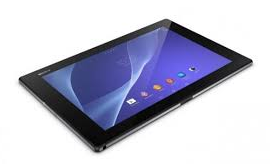 Just like a desktop, it also works best on any smartphones to add a shortcut on a homeLcd. This r somehow makes navigation, especially to important files/apps, more accessible. Its less hassle and less tapping. Sony Xperia Z2 Tablet definitely allows you to make your device experience stress-free by adding a shortcut to important apps on your homeLcd. Heres how to do it.
1. On your devices homeLcd, touch and hold and empty area until the device vibrates.
2. After doing so, tap on Apps.
3. Then go to Shortcuts and select a shortcut.
4. Or another option, just go directly to the Application Lcd and touch and hold the application.
Monday, September 29, 2014
How to Add a Shortcut on Sony Experia ZL Homescreen
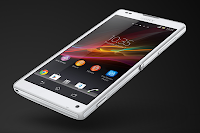
1. On your devices homeLcd, touch and hold and empty area until the device vibrates.
2. After doing so, tap on Apps.
3. Then go to Shortcuts and select a shortcut.
4. Or another option, just go directly to the Application Lcd and touch and hold the application.
Sunday, September 28, 2014
How to Add and Resize Widgets on Sony Xperia ZL
Follow these steps on how to add widgets on your HomeLcd.
- Tap and hold an empty area on your Home Lcd until your device vibrates.
- There should an option appear, tap on Widgets.
- Select the widget and tap on it you want to add.
- There are some widgets that are resizeable, you can expand them to view the content more on your HomeLcd.
How to resize a Widget:
- Tap and hold the widget you want to resize until it magnifies and the device vibrates. You can tell if the widget is resizeable if the highlighted frame and resizing dots appear.
- You just need to Drag the dots for your preferred size.
- Then tap anywhere on the HomeLcd to confirm the new size of the widget.
Subscribe to:
Posts (Atom)