Showing posts with label Link. Show all posts
Showing posts with label Link. Show all posts
Tuesday, October 28, 2014
How to customize Subscribe to Posts Atom link
Blogging is not all about writing posts, you should always concern about how much traffic you are getting. Though it is the first thing to write our post in decent manner so that user get it interesting, we should always have a good template with user friendly interface. A post
along with a professional design gets more traffic than a post with a odd look. As a example when you shift blog post title to center, the Subscribe to: Posts (Atom) lying on the startside bottom of your blog post seems very odd, which gives a rough look to your blog. By doing some simple customization we can add a background to Subscribe to: Post(Atom) link and can push it to center and can also add a border to it.
along with a professional design gets more traffic than a post with a odd look. As a example when you shift blog post title to center, the Subscribe to: Posts (Atom) lying on the startside bottom of your blog post seems very odd, which gives a rough look to your blog. By doing some simple customization we can add a background to Subscribe to: Post(Atom) link and can push it to center and can also add a border to it.
Follow the following steps carefully
1) Go to Blogger--------Design-------Edit HTML2) Back up your Template
3) Press Ctrl+F and search for the code.
.feed-links{clear:both;line-height:2.5em}
4) Replace it by the following codes
.feed-links{background:#ffffff;border: 1px solid #9e9e9e;
text-align:center;clear:both;line-height:2.5em}
If you want to add a rounded border add the following codes after border-radius: 5px;in the above codes.
Finally the codes for the feed link with background color and rounded border will look like this
5) Now click on Save.feed-links{background:#ffffff;border: 1px solid #9e9e9e;
border-radius:10px;
-moz-border-radius:10px;
-webkit-border-radius:10px;text-align:center;clear:both;line-height:2.5em}
- If you are getting any problem in implementing this codes,contact me

Sunday, October 26, 2014
Auto Tweet Post From Facebook To Twitter Know How To Link Facebook To Twitter
Instead of dual sign in process, you can opt to link Facebook to Twitter.
Advantages Of Linking Facebook To Twitter
- This method saves your time and so you can do some other work.
- It is very useful for one who post and shares much.
- Sharing once on Facebook will automatically ping it to Twitter instantly.
- You wont miss your Twitter followers.
- You can connect both your Facebook profile and pages to Twitter.

Link Facebook To Twitter
- Log in to your both Twitter and Facebook account and go to this link https://www.facebook.com/twitter/
- If you are already on your Facebook home page, then add "/twitter/" next to facebook.com without any quotation marks.

- Click on Link My Profile to Twitter or Link a Page to Twitter.
- This will take you to another page as shown below.

- Link your profile or pages to Twitter as per your wish by clicking on Link to Twitter.
- Then it will take you to Twitter website in order to authorize.

- Click Authorize app.
- Within few seconds, it will redirect you back to Facebook.

- Thats all, now we have connected it successfully.
- You can also edit the settings. So that it is easy to control which one do you want to share to Twitter such as photos, status updates, video, links, notes and events.

- Click on Save Changes.
Also there is an option to unlink Facebook from Twitter. Alternatively, you can also unlink Facebook directly on the Twitter website. Lets see how to do it.
- On your Twitter home page, go to Settings > Apps > Revoke access

Friday, October 3, 2014
How to Link Duplicate Contacts on Sony Xperia Z2 Tablet
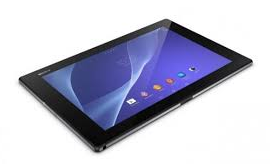 Duplicate contacts usually happens when you import your old contacts to your new device or when you synchronize your contacts with the other account. On your Sony Xperia Z2 Tablet, you can avoid dupicate contacts and instead link these two to create a single entry. If you happen to link two contacts by mistake, you can separate them again. Heres how you can link two contacts.
1. On your devices homeLcd, tap on
 .
.2. Tap on
 and tap the contact you want to link with another contact.
3. Press on
 and tap Link contact.
4. And tap the contact whose information you want to be linked with the first one. Tap OK to confirm. The first contact no longer appears on your contact list but is merged with the second contact.
Now if you mistakenly linked two contacts
on your homeLcd and then tap on.2. Then tap on the linked contact you want to edit.
3. And tap on
 . Tap on Unlink contact on the list and tap on OK to confirm.
Subscribe to:
Posts (Atom)