Showing posts with label studio. Show all posts
Showing posts with label studio. Show all posts
Wednesday, October 29, 2014
Speed up a portion of a videoclip in Camtasia Studio
This tutorial is about Techsmith Camtasia Studio, probably the best software to edit tutorial videos now a days. It is very user friendly and easy to use software. Camtasia Studio 8.1.2 comes out with some great features, with the help of those we can actually create tutorial videos like the professionals.
In this discussion I shall be sharing the idea of clip speed, how can we speed up a particular portion of a video or how can we slow down a portion of a video. To follow this tutorial you need to pre install Camtasia Studio, it will be better if you install the version 8.1.2. Secondly you need a video to edit. So without pulling more this discussion, I am going to write the necessary steps with some screenshots, which will help you to understand better.
Follow the following steps
1) Run the Camtasia Studio, after installation.
2) Now click on Import media to insert the video
3) Now Right Click on the Video and click on Add to Timeline at Playhead
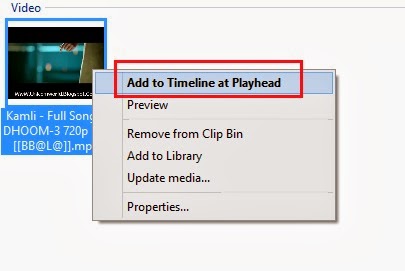 4) Now select the portion of the video, which is to be speed up. (Take the help of the following screenshot)
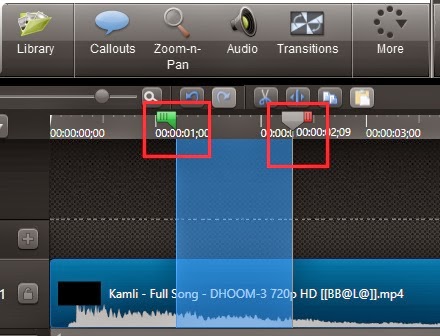
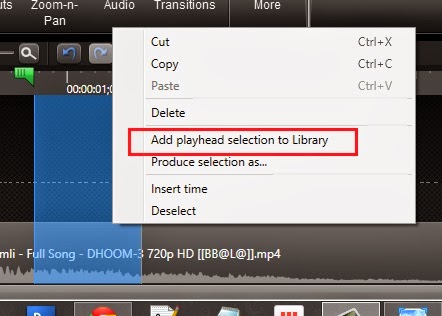
5) Now Right click on that portion and click on Add playhead section to Library as shown in the screenshot
 6) From the Library add the clip to the timeline, after adding the clip the timeline will be like
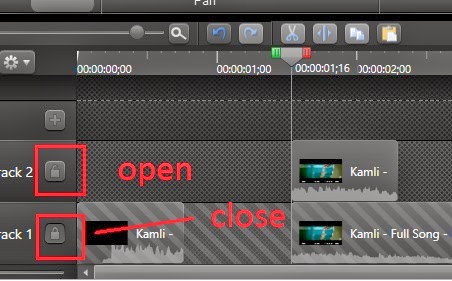
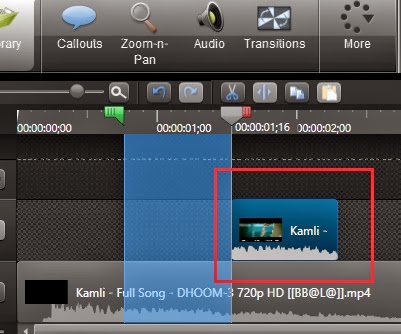 7) After that lock the recently added clip by clicking the open lock as shown in the following screenshot
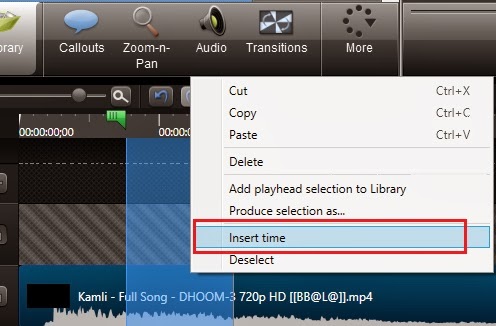
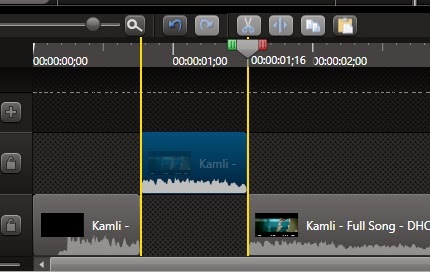
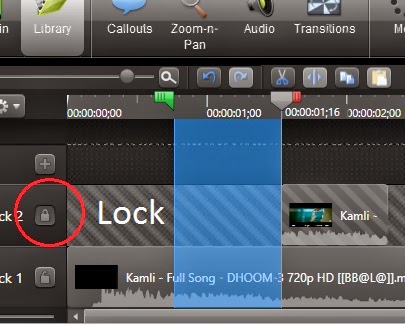 8) Now Right Click on the selected (blue coloured) video portion and click on Insert time, as shown in the screenshot
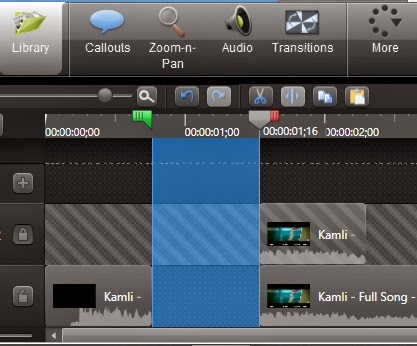
9) Now you will get a timeline as shown in the following screenshotIn this discussion I shall be sharing the idea of clip speed, how can we speed up a particular portion of a video or how can we slow down a portion of a video. To follow this tutorial you need to pre install Camtasia Studio, it will be better if you install the version 8.1.2. Secondly you need a video to edit. So without pulling more this discussion, I am going to write the necessary steps with some screenshots, which will help you to understand better.
Follow the following steps
1) Run the Camtasia Studio, after installation.
2) Now click on Import media to insert the video
3) Now Right Click on the Video and click on Add to Timeline at Playhead
5) Now Right click on that portion and click on Add playhead section to Library as shown in the screenshot
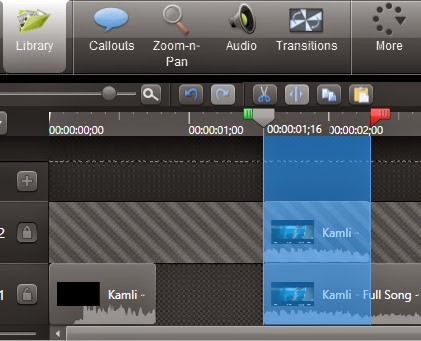
11) Now Right Click on that selected portion and click on Cut

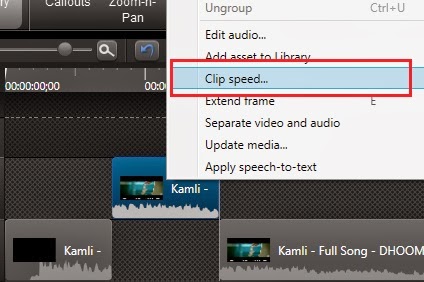
14) Now Right Click on the Clip and click on Clip speed, set the value, by default it is 100, if you want to speed up the clip increase the value and vice versa.
15) Finally select both the clips by pressing the Ctrl Key on the keyboard, and make them a Group. At last produce the video.
Carefully follow the above steps, if you get any problem, you can contact us. Thanks

Thursday, September 4, 2014
Teach Drawing Disney Creativity Studio via iPad
Teach Drawing Disney Creativity Studio via iPad - Its starting to think about year-end gift for your child? Apparently, Disney Creativity Studio application would be the perfect gift. Through the application, an original Disney artists will teach the children to draw a variety of Disney characters, including Mickey Mouse, through a simple tutorial, step by step. The application is accompanied with Smart Stylus accessories, digital pen-shaped and a special bag. Disney Creativity Studio can be used by all children of all ages, especially aimed at children aged 4 years and above, to draw on the iPad screen.
Besides being used for drawing with a variety of types of brushes and seals, Smart smart stylus can also serve as an eraser. To facilitate the selection of the desired color, the top of the iPads screen will be presented color palette. Not only that, special accessories Stylus Smart also has a special mode, the image rotation with rainbow colors. This mode can be activated simply by shaking the stylus.
In addition to drawing lessons characters, Disney Studio Creativity application also includes other activities such as coloring, tracing and connecting the dots, as well as a blank canvas that can be used to draw any. The whole creation is automatically saved and can be distributed via email by pressing certain buttons provided. Disney Creativity Studio Applications that run through the iPad will go on sale Nov. 1 through Apple Stores with two design options, Mickey or Disney Princess, for $ 49.99 (includes Smart Stylus, bags and a code to download the application for free from the App Store). If you are only interested in obtaining the application alone, without other accessories, can be downloaded through the App Store at a price of $ 3.99.
![Disney]()
Video Usage Disney Creativity Studio:

Video Usage Disney Creativity Studio:
Subscribe to:
Posts (Atom)